Tech Tuesday – July 4: Google Appointment Schedule and Adjustment Requests for Patients
TechTuesday
A weekly tip email from your neighborhood Instructional Technology and eHR team.
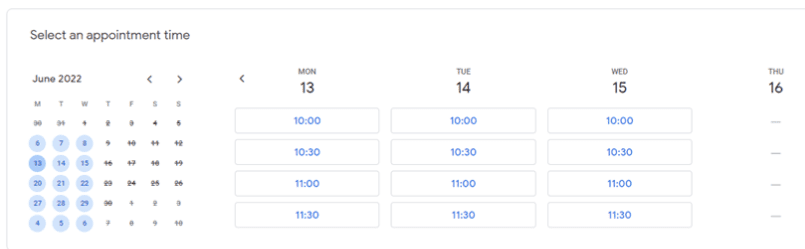
Tip #1 – By popular demand, here is how to set up your own booking page using Google Appointment Schedule. This feature, very similar to Calendly, allows other users to select a time to meet with you. You can specify what times/dates others can choose from. You can even set up multiple booking pages for different lengths of time. See my example booking page here.
Follow this guide to set yours up, which is included and FREE with your VCU Google account.
Tip #2 – Adjustment requests
Everyone likes some discounted dental work, but we have to be prudent when offering this as a potential option to our patients. Faculty, please heed the following when guiding your student through adjustment requests
- Please fill out the form in detail. There is an “Additional Information” field specifically for inputting as much detail as possible. This will greatly expedite the process.
- Please use discretion when discussing the possibility of the adjustment process. It may be wise to discuss away from the chair and never tell a patient there will definitely be an adjustment; “It will be reviewed by our patient liaisons.”
- A sticky note will be placed on the chart letting the student know what to do on the day of treatment.
- Adjustment requests must be sent via Running Man to the correct message group. To do so, with the Adjustment Form open, click the Running Man icon. Students must clear their name from the “User” field and select the group, “Adjustment Request for Patient.”
