Tech Tuesday – February 14: Intiveo Chat Feature and Clearing Cache and Cookies in Google Chrome
TechTuesday
A weekly tip email from your neighborhood Instructional Technology and eHR team.
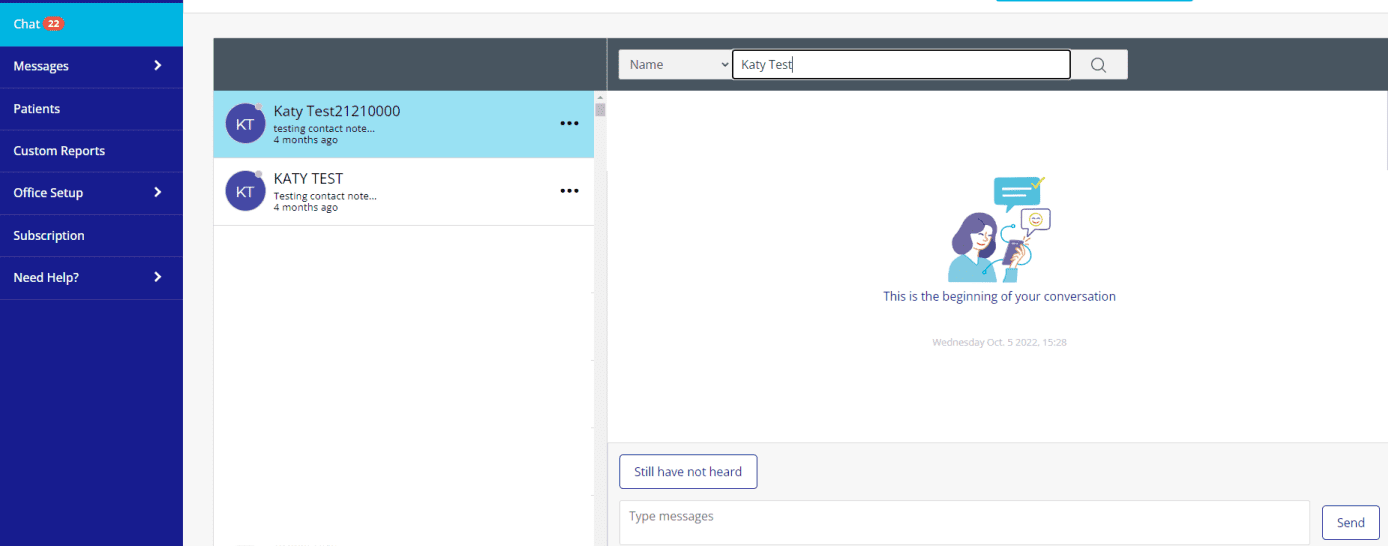
Tip #1 – Be a PRO at Intiveo! Patient appointments can be confirmed multiple ways. The patient can confirm via their received Intiveo messages. Practices can confirm by calling any patients whose appointment cards are still green. Practices can also utilize the Chat feature. This is found on the left menu. Chat will show a list of patients on the right, starting with the patients that were communicated with most recently. Click a patient to start texting with them. It can be very efficient to chat with multiple patients simultaneously, confirming that they will be at their appointment. Predoc has been utilizing this 3-pronged approach (Intiveo, calling, and chatting) and have drastically reduced their unconfirmed appointments. Go PREDOC!
Tip #2 – Tech never ever, ever breaks, right?  Just in case it does, it may be good to know some tips.
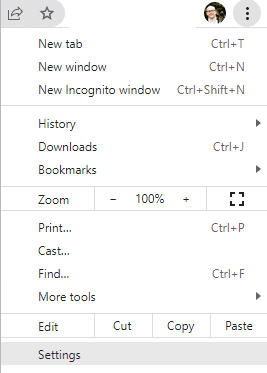
Like when Chrome just doesn’t seem to be working properly. When restarting Chrome doesn’t work, you may be directed to get under the hood and clear Cache and Cookies. Here’s how to do it. 3-dot menu>Settings
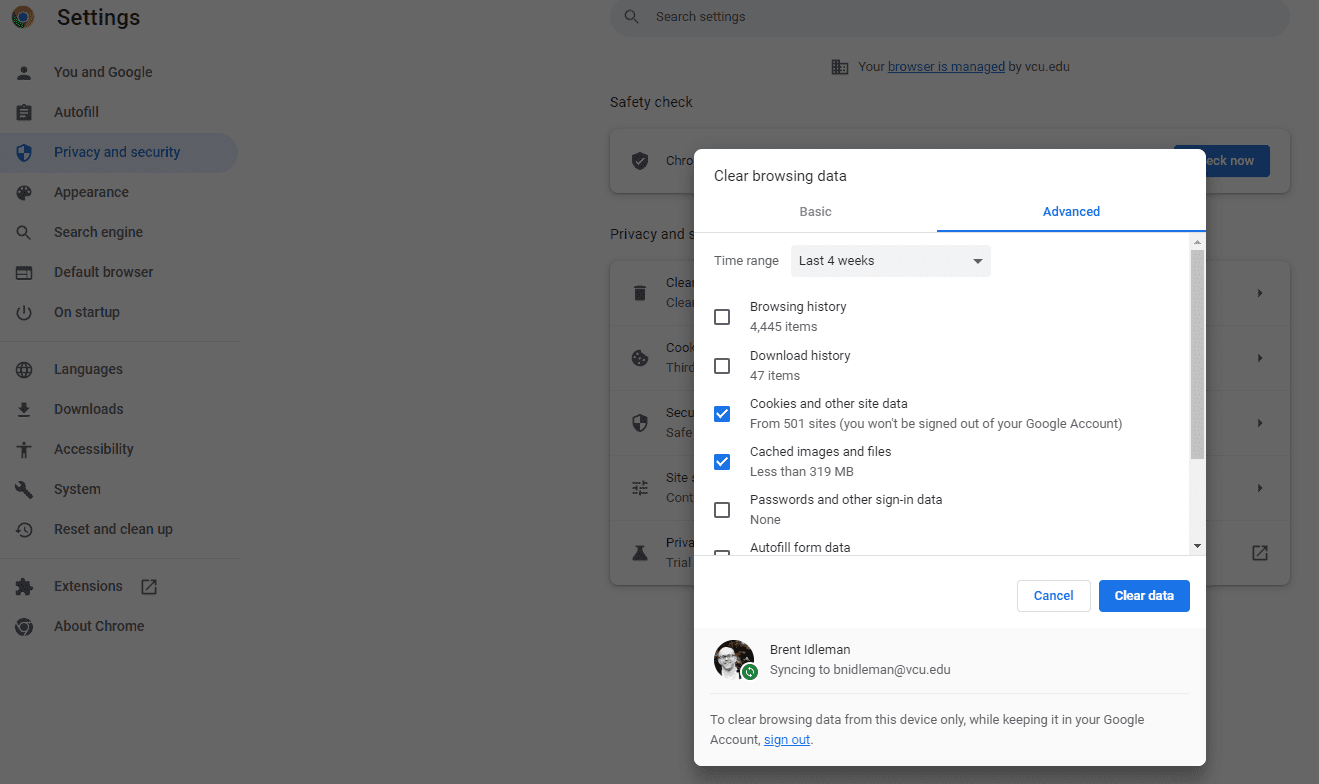
Privacy and security>Clear browsing data>Select Cookies and other site data AND Cached images and files