Tech Tuesday – March 7: REALGuide- Creating an account and new patient, Gmail labels
TechTuesday
A weekly tip email from your neighborhood Instructional Technology and eHR team.
Tip #1 – Get “real good” at REALGuide
This implant treatment software is here to stay as it permeates into the current implant workflow. The next couple of tips will be focused on this software.
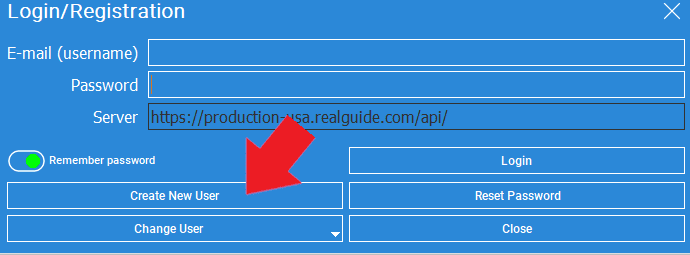
When you first install it from here and open it, you will need to create an account. Click the “Offline” text and icon to initiate the process. You MUST use an @vcu.edu email.

To create your first patient, click the + “Add patient” icon. Enter the first/last name and date of birth exactly as it is in axiUm. In the “Notes” section, enter the chart number.

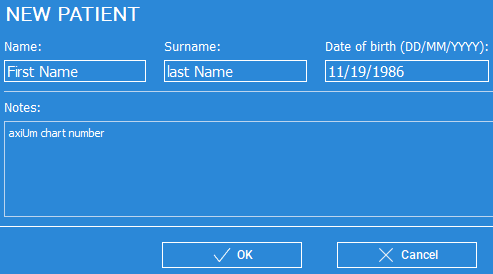
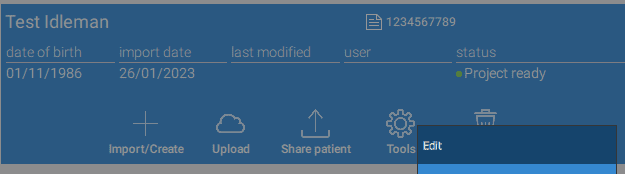
This will create the patient and populate on the left menu. If you need to alter the name or birthday, click the gear icon>Edit. All of this just creates and edits the patient locally on your machine. Next week, we will learn how to cloud save and share the patient case.
Tip #2 – What type of gmail user are you? Do you keep everything as unread? Or do you like to keep that inbox counter at 0? Do you use labels? Chat? Vacation reminder? Mail forwarding? Nudges? Compact view? Inbox delegation!? Signatures!!? Attachments!!!!? Embedded links!!!!!? 3rd party app integration!!!!!!?? Whoa, let’s slow down.
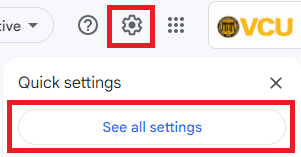
Gmail is used ubiquitously and all of these mentioned features are available plus many more. We will use the next few weeks to highlight some features that will hopefully improve your organization and efficiency. To find most of these features, click the Gear icon>”See all settings”
The first feature is Labels. Labels are ways of categorizing emails, so later, you can click that Label to filter out just those emails. Some are automatically created for gmail accounts, like Inbox, Sent, Scheduled, as well as Social and Updates. You can toggle these on and off as needed.
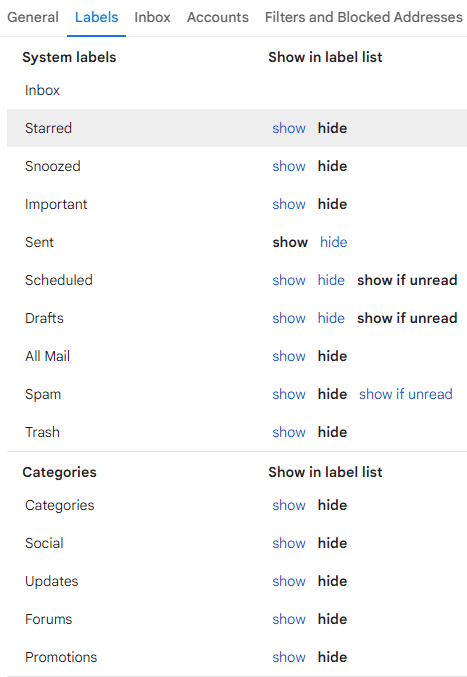
The real fun is creating new ones that fit your needs. Click “Create new label” and give it a name. You can create more Labels, or sub-Labels that are nested underneath already created ones. You can even customize when and how they are displayed.
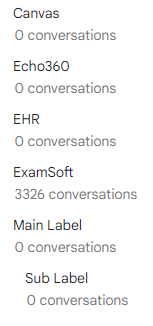
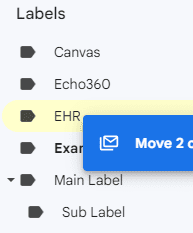
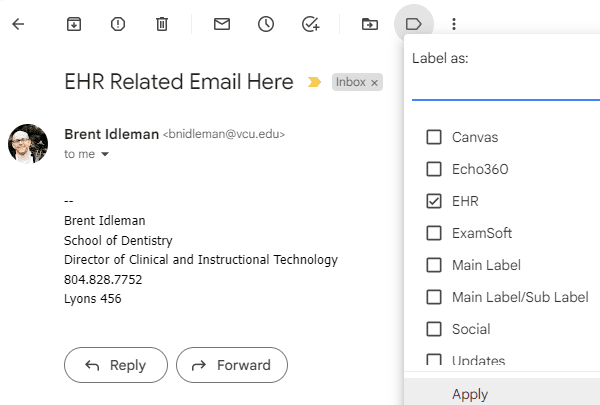
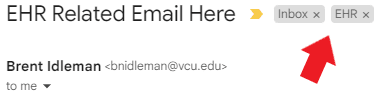
To apply a Label, drag and drop the email(s) to the Label or apply within the email itself.