Google Updates Recap: February 2026
In this update, we’re covering an important change to “secondary calendars” and several improvements across Calendar, Chat, Drive, and Meet.
Table of contents
Important Notices
Important changes to secondary calendars
Secondary calendars, as opposed to your primary calendar (the one that comes with your VCU account), are calendars that are self-created. Often, these calendars are shared with others and used for team activities, such as leave calendars, team meetings, meeting rooms, etc.
Starting November 2025, secondary calendars now have a new role added and assigned automatically: “Owner.” This dedicated owner role is given to exactly one person. When a new secondary calendar is created, the creator of that calendar automatically becomes the owner.

Additionally, you will now see a new option to Transfer ownership to a new individual.
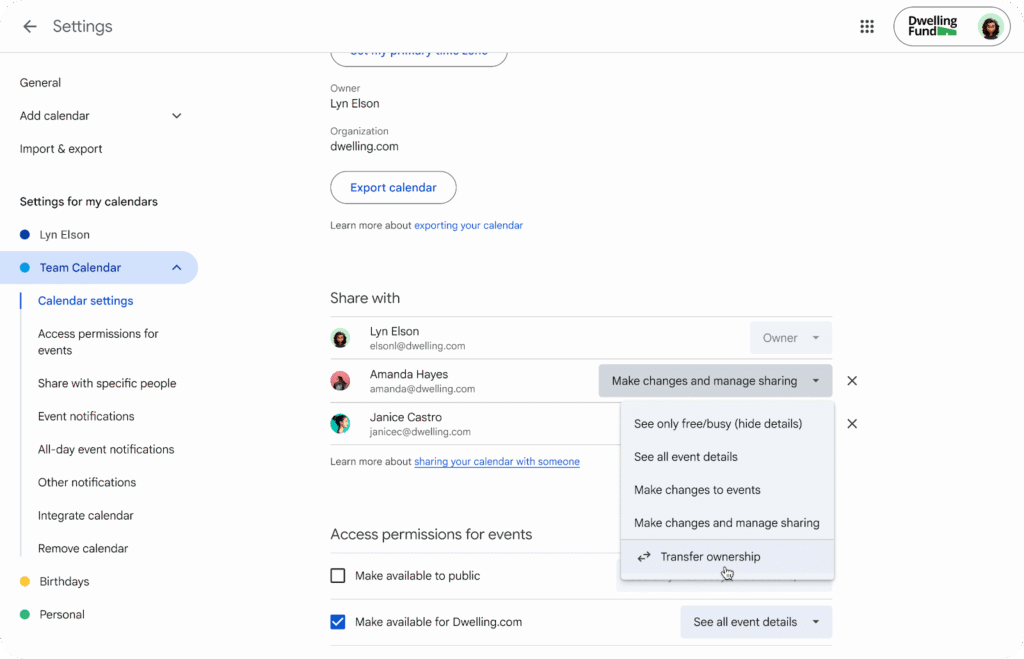
Rollout: A majority of secondary calendars have already had an Owner assigned automatically. If you see a VCU secondary calendar you have access to that does not have an Owner, please reach out to Collaboration Services at [email protected].
Google AI
Transform sources into structured Data Tables in NotebookLM
NotebookLM can now take information and transform the data into an organized table that can be easily exported to a Google Sheet.
Some ways suggested by Google that this can be used include:
- Prepare for exams with study tables of historical events, organized by date, key figures, and consequences.
- Turn meeting transcripts into a clean table of action items, categorized by owner and priority. Or build a competitor comparison table analyzing pricing and strategies.
- Streamline curriculum mapping by aligning state standards, learning objectives, and assessment criteria across your semester plan.
- Synthesize clinical trial outcomes across multiple papers to track study years, sample sizes and statistics.

Setup step for the Data Table
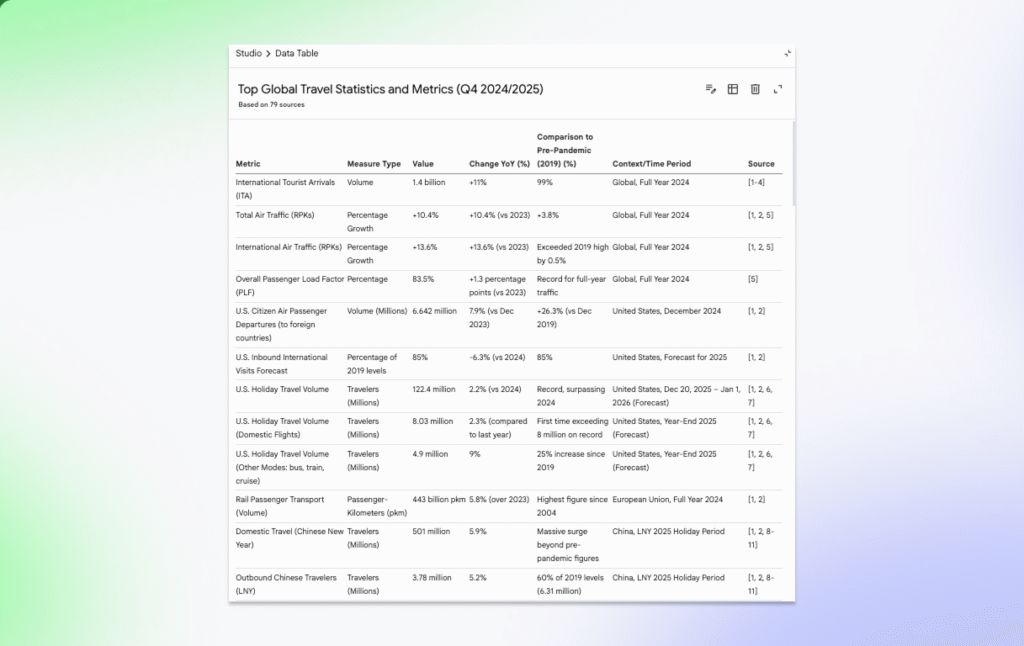
Resulting Data Table example
For more information about Data Tables in NotebookLM, visit: Create a notebook in NotebookLM.
Feature Availability: This feature is now available.
Take your notebooks further by adding NotebookLM as a source in the Gemini app
In Gemini, you can now use NotebookLM notebooks as sources. This allows you to receive responses that are more grounded in the information you provide.
Some things you can do with this are:
- Create content based on your notebook
- Add a notebook to a Gem
- Use other Gemini tools (like Canvas, Veo, Guided Learning, or Deep Research) based on the contents of your notebook
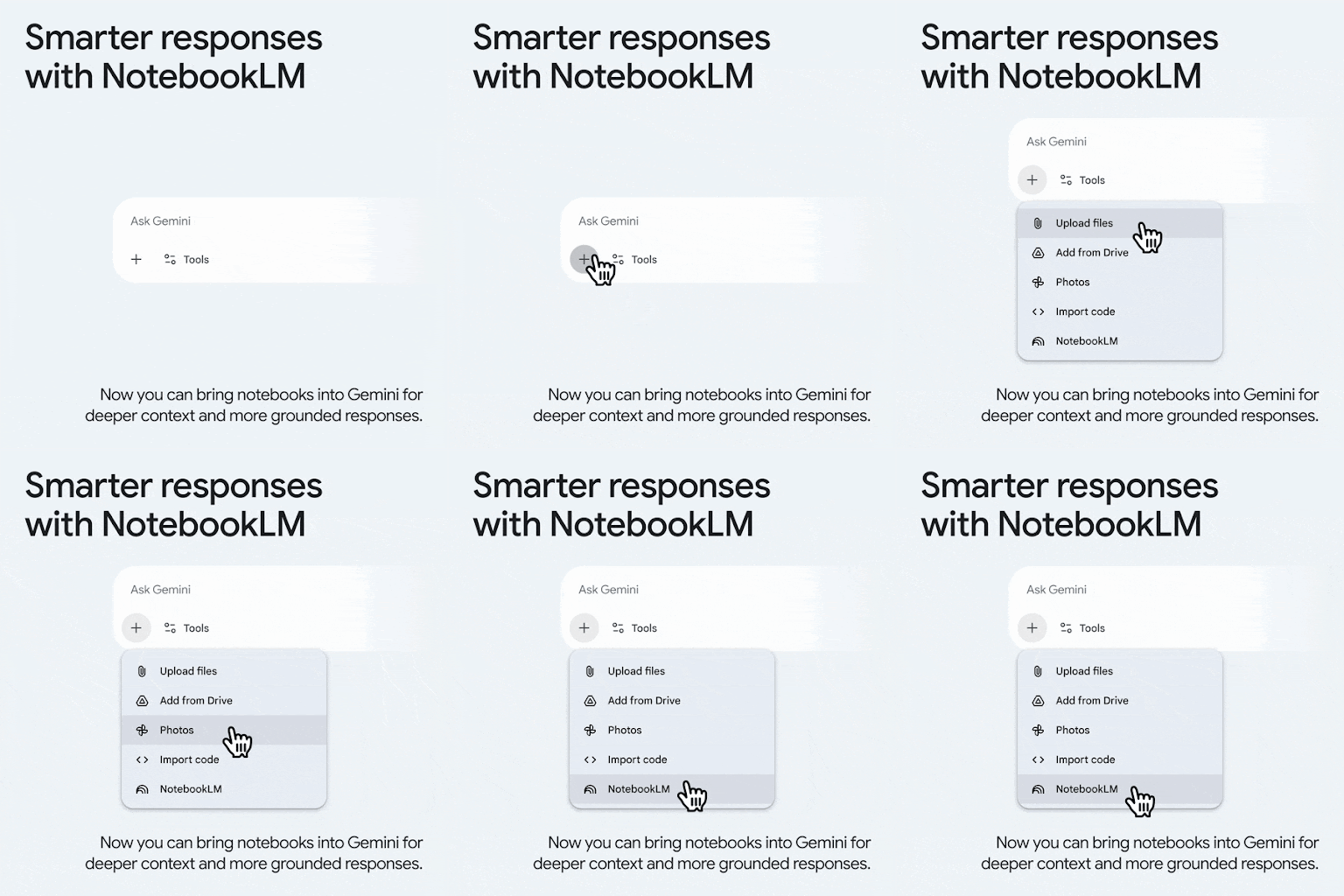
For more information, visit: NotebookLM Help.
Feature Availability: This feature is now available.
Google Calendar, Tasks, & Keep
Calendar event color labels now also accessible to users with “Make changes to events” permission
Color labels allow you to apply labels to your events to give you insight to how your time is used. Previously, these labels could only be seen by individuals who had “Make changes to events and manage sharing” on a primary calendar. Now, they can also be seen by people with the “Make changes to events” permission.
For more information, visit: Use color labels to track calendar entries.
Feature Availability: This feature is anticipated to have an ‘extended rollout’ and may not be visible by the estimated date of March 14, 2026.
Google Chat
Block messages from unknown senders in Google Chat
In Google Chat, you can now control whether individuals outside of VCU can start conversations with you or invite you to Spaces with two new settings.
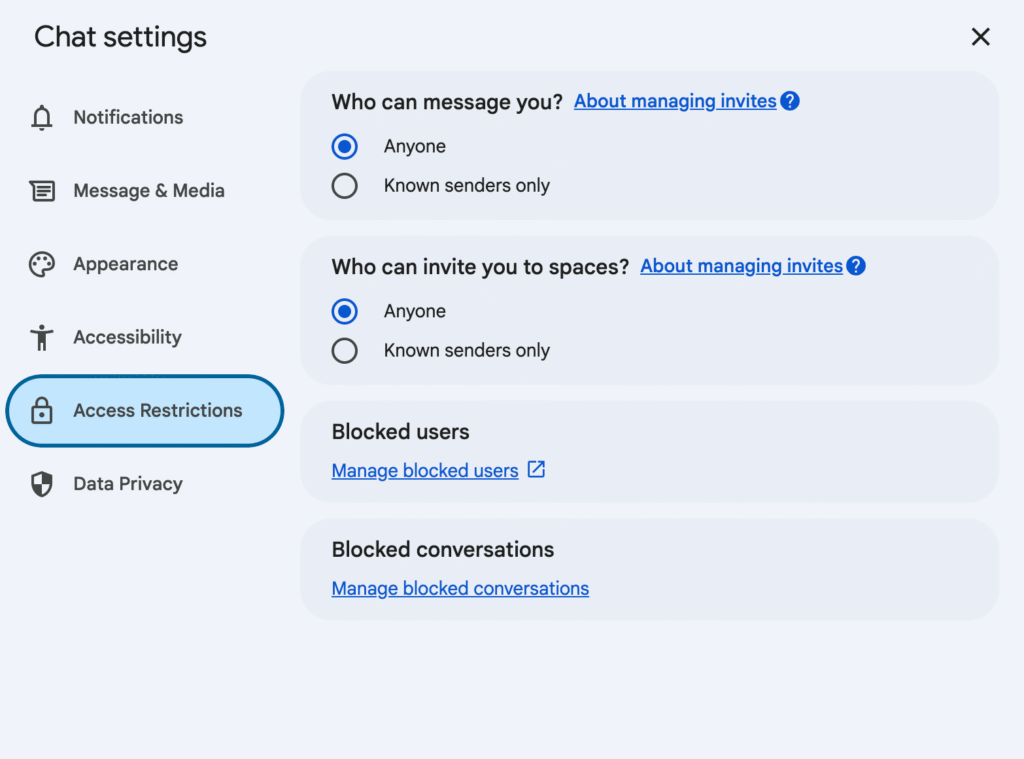
If these settings are enabled, individuals outside of VCU will only be able to contact you or add you to a Space if you’ve previously interacted with them or if they are in your Contacts.
Note: This does not change whether people within VCU can contact you.
For more information, visit: Restrict messages from unknown senders in Chat.
Feature Availability: This feature is now available.
Schedule messages to be sent at a later time in Google Chat
You can now schedule a message in Google Chat to be sent later. This highly requested feature will allow you to schedule a message to be delivered so that it is not delivered at an inopportune time, such as late at night or early in the morning.
Additional information:
- When composing a message in a Chat conversation, by clicking the down arrow next to the compose bar, users can select a time to send the message up to 120 days in the future.
- If a user has a scheduled message in a conversation, a banner will appear above the compose box. Clicking this banner or the new Drafts shortcut in the left panel will open a dedicated area to manage all scheduled messages, where users can edit, reschedule, or cancel them.
- The Draft shortcut is only available when there are scheduled messages.

Clicking on the down arrow next to the Sent button brings up the Schedule send menu
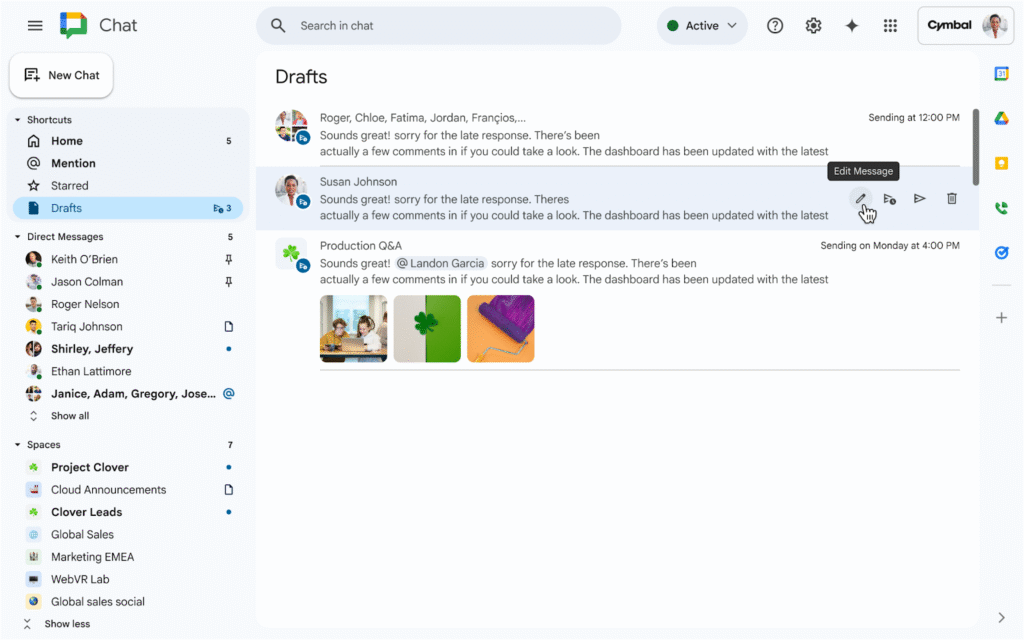
Clicking on the down arrow next to the Sent button brings up the Schedule send menu
For more information, visit: Create, send & reply to messages in Google Chat – Schedule messages.
Feature Availability: This feature is now available.
Control whether users can request to join a space in Google Chat
Spaces now have a control that allows you to choose whether non-members can request to join your Space. Previously, if someone received a link to a space that required permission for them to join, they could send a request to space owners and managers.

For more information about managing Space settings, visit: Manage space settings – Learn about role capabilities.
Feature Availability: This feature is now available.
Google Drive & Docs Editors
Editing password-protected Microsoft Office files directly in Google Drive
Google Drive now supports editing password-protected Office files directly in Drive. When opening a password-protected Office file, you will be prompted to enter the password and then choose “Preview” to view the file or “Edit” to make changes.
Note that choosing “Edit” will remove the password-protection on the file and proceed to open the file in Docs, Sheets, or Slides as appropriate.
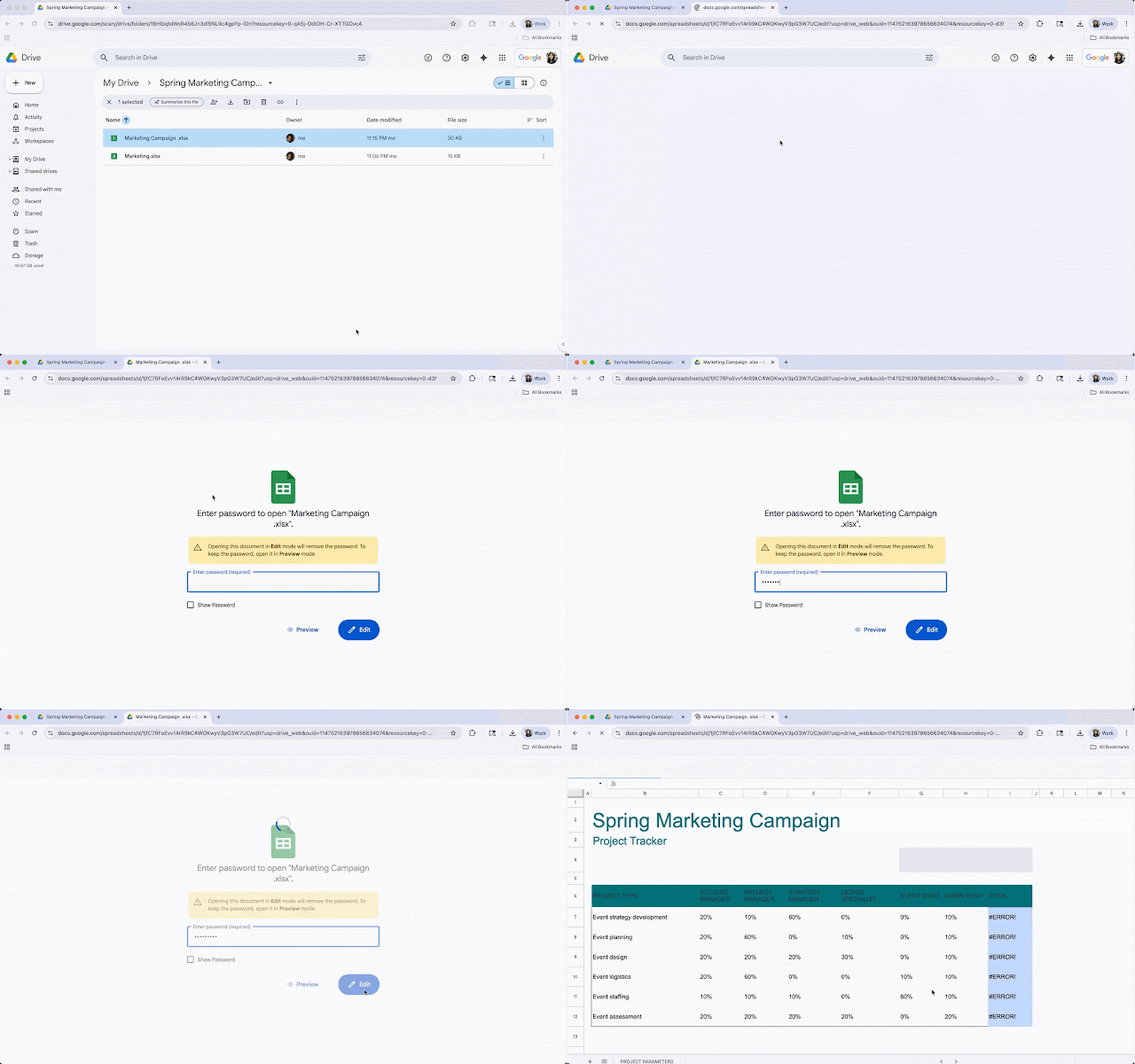
For more information, visit: Work with Office files – Edit an Office file directly in Docs, Sheets, or Slides – Open Office files protected by passwords.
Feature Availability: This feature is now available.
Google Forms
All Google Forms will now have granular controls over who can respond
In August 2025, Google announced that Google Forms were getting new granular controls for who would be able to respond to a Form. Previously, these updates only applied to newly created Forms. Now, these changes are rolling out to existing forms as well.
Feature Availability: This feature is currently rolling out and is anticipated to be applied by or around February 13, 2026.
Set Google Forms to automatically stop accepting responses based on date and time or response count
Form response limits, a popular feature request for Google Forms, have arrived! You can now set a Google Form to stop accepting responses when either a date/time has passed or a response count has been met.
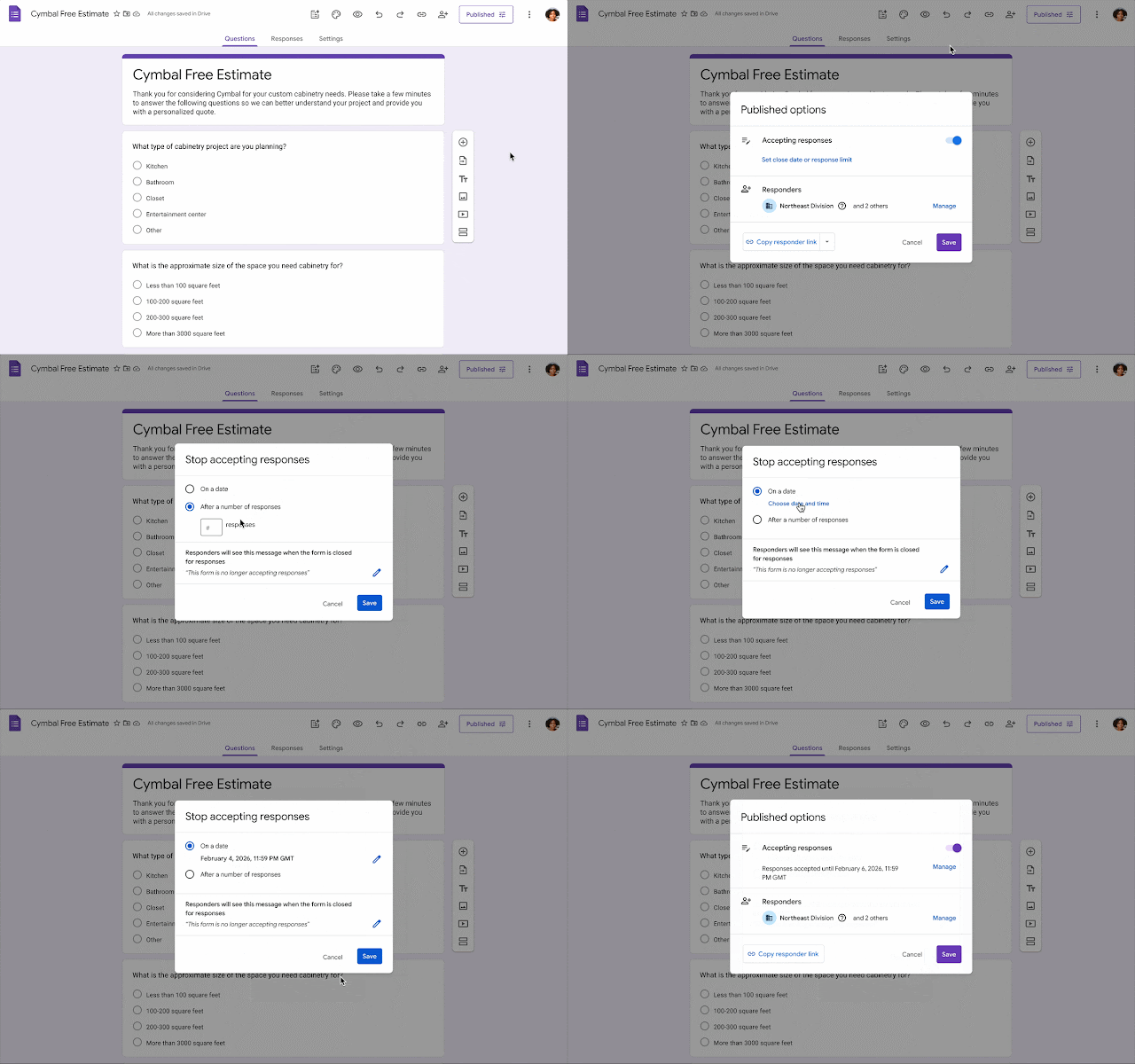
For more information, visit: View & manage form responses – Google Docs Editors Help.
Feature Availability: This feature is currently rolling out and is anticipated to be available on or around February 13, 2026.
Google Meet
Meet now automatically opens picture-in-picture when screen sharing
When initiating a screen-share in Google Meet, picture-in-picture mode will now open automatically.
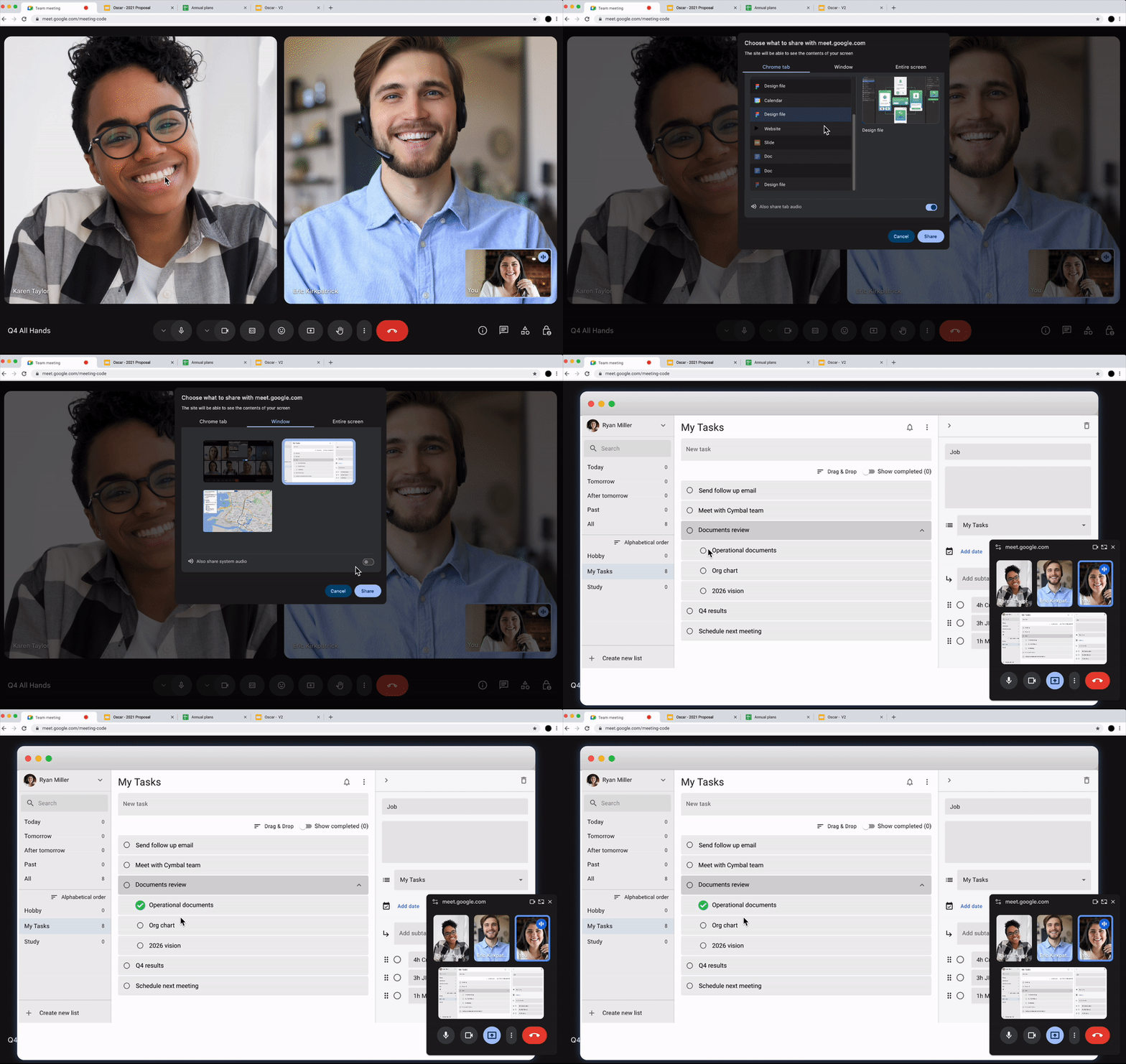
This update also comes with a new setting for Automatic picture-in-picture to change this behavior if desired. This setting can be located under Meet Settings → General tab:
- Never use automatic picture-in-picture
- Only use automatic picture-in-picture for tab switching
- Only use automatic picture-in-picture for window and screen sharing
- Always use automatic picture-in-picture
Note: You will need to grant Google Meet permission in your web browser to use picture-in-picture mode.
For more information about using picture-in-picture mode in Google Meet, visit: Use picture-in-picture with Google Meet.
Feature Availability: This feature is now available.
Share stereo sound with audio content in Google Meet
When sharing audio in Google Meet, you will now be able to share stereo audio (audio with both left and right channels) if the original audio being shared uses stereo audio.
Additional details:
- Only users on the web will be able to send stereo audio.
- Only Chrome and Firefox browsers will be able to receive stereo audio.
For more information about presenting in Google Meet, visit: Present during a video meeting – Google Meet Help.
Feature Availability: This feature is now available.
Share your device’s audio when presenting in Google Meet
When screen sharing in Google Meet, you can now share your device’s audio when you share a Tab, Window, or your entire screen. Previously, sharing your audio only worked with sharing a Tab’s audio.
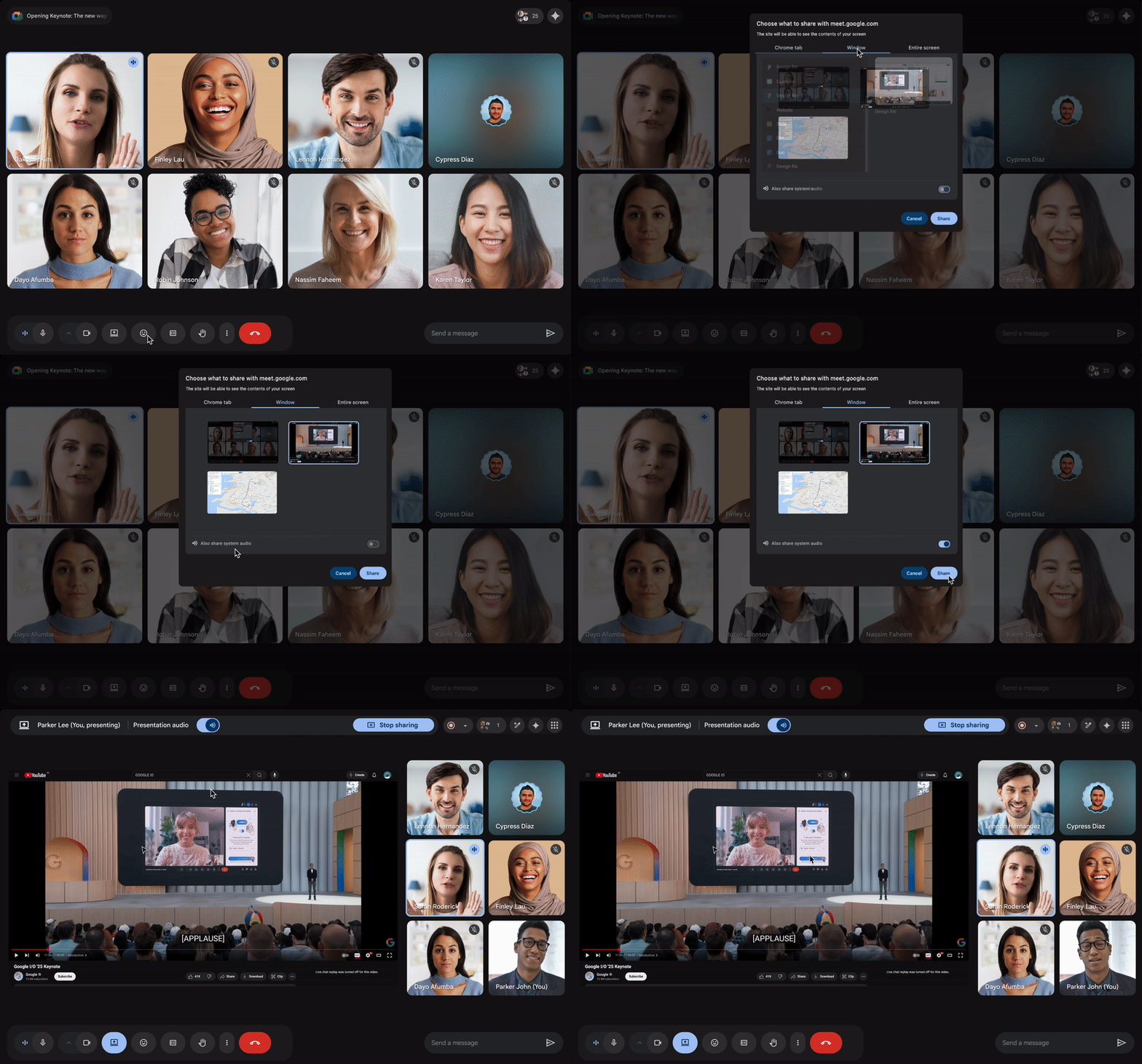
Note: This feature will not be available if you have Adaptive Audio enabled.
For more information about this feature and screen-sharing in Google Meet, visit: Present during a video meeting – Google Meet Help.
Feature Availability: This feature is now available.
Google Vids
Styled captions in Google Vids
You can now add styled captions to your Vids, which are animated and synchronized with the audio in your video and make it easier to follow along with the audio. You will also be able to modify the subtitles to correct for any spelling or grammar mistakes.

Styled captions also come with a variety of different fonts:

Captions are supported in the following languages: English, Arabic, Czech, Mandarin Chinese, German, Greek, Spanish, Finnish, Filipino, French, Hindi, Hungarian, Indonesian, Italian, Hebrew, Japanese, Korean, Malay, Dutch, Norwegian, Polish, Portuguese, Romanian, Russian, Swedish, Thai, Turkish, Ukrainian, Vietnamese, and Chinese.
For more information about adding captions to Vids, visit: Add captions to a video – Google Docs Editors Help.
Feature Availability: This feature is now available.
Categories Google Calendar, Tasks, and Keep, Google Chat, Google Drive & Docs Editors, Google Feature Updates and Changes, Google Forms, Google Meet, Google Vids, Google Workspace News, Important Changes, Other Google Feature News