Zoom Gets a New Look
On August 10, the familiar Zoom web interface will be replaced with a redesigned, “simplified” version. You can give the new look a test drive today by clicking on the “Try new experience” toggle at the top of your account page at vcu.zoom.us.
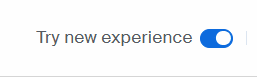
When you do, a message will let you know you can revert to the older look at any time, at least until August 10 when the “new look” becomes the only look.
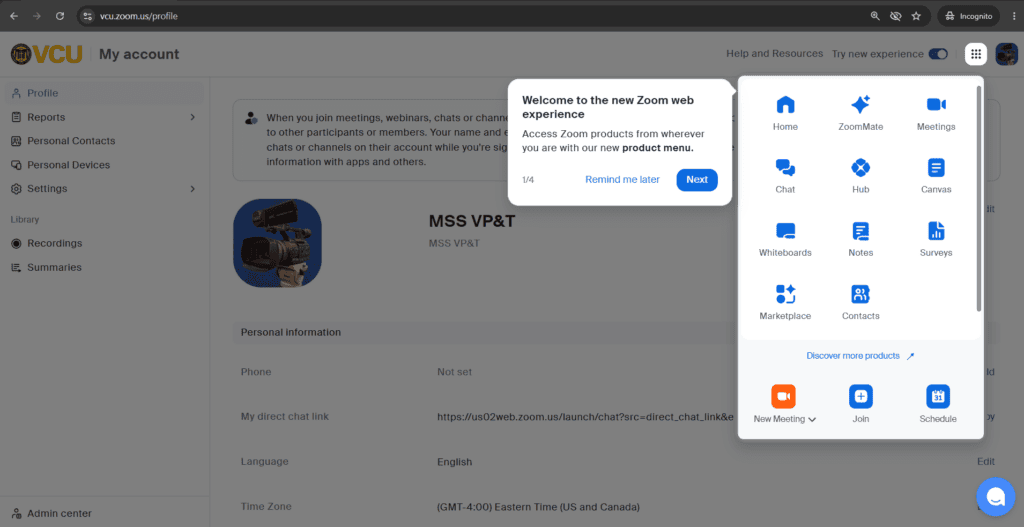
When you first log in with the new look, a brief tutorial will guide you on a helpful walkthrough.
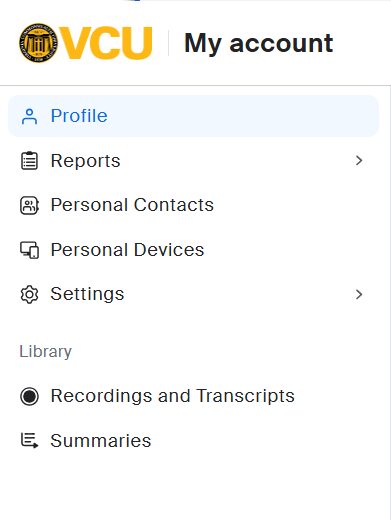
You’ll notice the left-hand navigation menu that used to stretch the full length of the page is now cleaner and more compact.
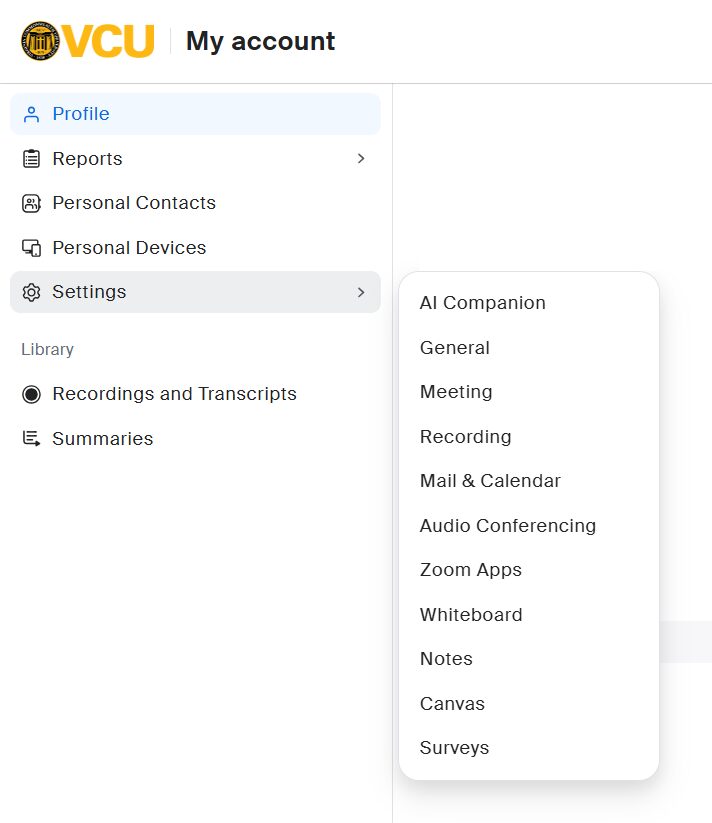
Click on a header to see a pull-down menu with direct links to the settings or reports you need.
Also note the prominent links to your libraries of Recordings and Summaries.
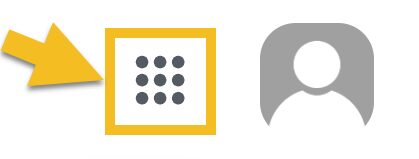
The biggest change is the relocation of Zoom features onto a new “Products” sub-page, accessed from the “waffle” icon at the upper right corner, next to your profile picture (or initials).
This is where you’ll find the link to your Meetings page, listing your recent and future meetings and allowing you to add to the schedule. It’s also where you’ll find links to your Whiteboards, Notes, Surveys and more.
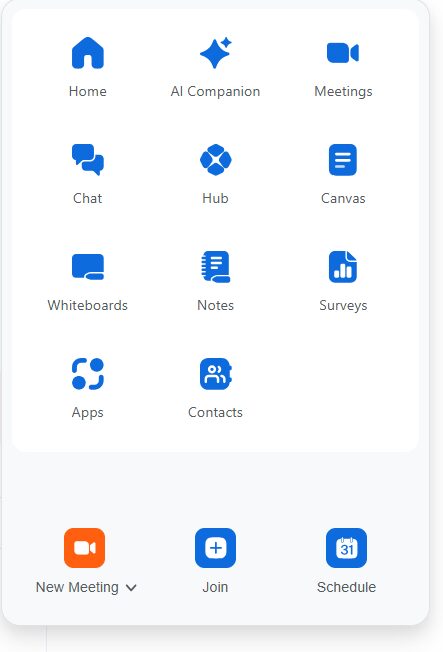
Don’t be confused by the link called “Canvas.” This is the new name for the feature formally known as “Zoom Docs,” and does not refer to the Canvas Learning Management System.
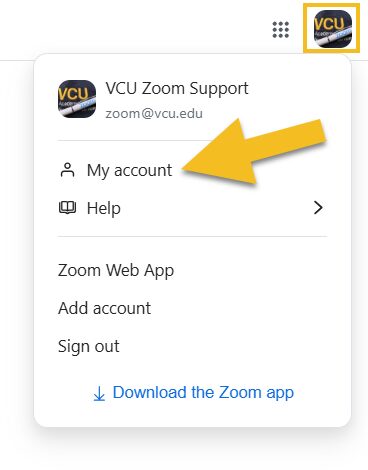
To return to your account profile from any of those subpages, click on your profile picture to the right of the waffle icon and choose “My Account.“
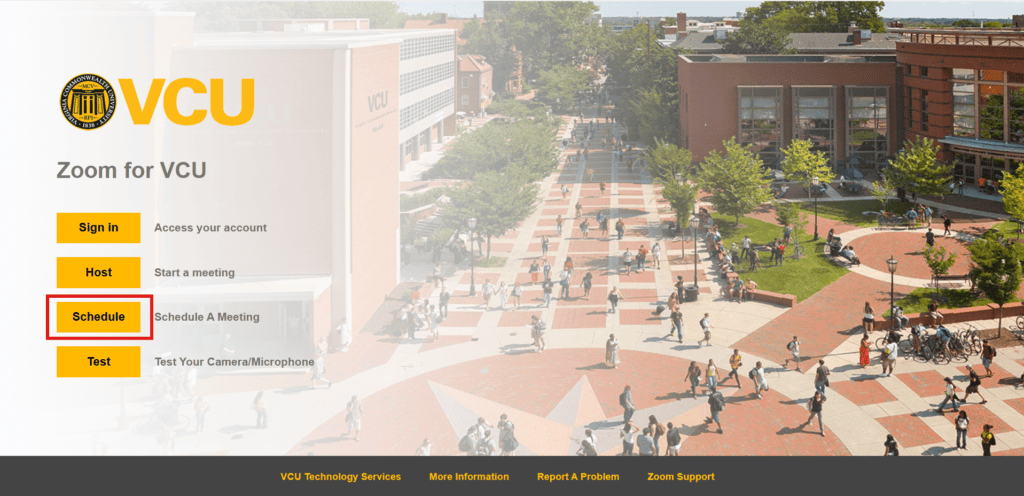
Since the “Upcoming Meetings“ page is arguably the most visited area of the Zoom portal, we’ve added a button on the login page that takes you directly to it. The button marked “Schedule” lets you see your upcoming meetings and/or add a new one.
It may take a little time to get used to the new workflow. Give it a test drive and if you like it, leave it on. If you decide you’re not ready to make the leap just yet, toggle it off again and try again later, but after August 10 there will be no turning back.
As always, if you have questions about this or any Zoom features, feel free to contact us at [email protected] or schedule a virtual help session at a time that works for you.
Categories announcements, features