Countdown to April 24th: AI as Your Accessibility Partner

The Date & The Mindset
Let’s start with a reality check: VCU must meet the Department of Justice’s updated ADA Title II accessibility regulations by April 24, 2026. As noted in the VCU Provost Blog Post: Resources for faculty: Federal accessibility requirements mandated by April 2026, this mandate “applies to all digital content provided to students.”
This blog post focuses on using AI as an accessibility partner; it does not cover the standards for creating accessible digital content. For detailed guidance, see the LEDstudio micro‑course: Digital Accessibility for VCU Faculty. and LEDstudio’s quick start guides: Accessibility in Digital Learning, and Math and STEM Accessibility Resource Guide.
To meet the accessibility challenge without burning out, one option is to team up with an AI assistant. Wharton professor Ethan Mollick in his blog post Post-Apocalyptic Education, suggests that educators view Large Language Models (LLMs) not as “magic bullets” that do work for us, but as partners.
AI & Time Savings
When we think about using AI as an accessibility partner, the question isn’t just “Can I trust it?”—it’s “Can it help me work faster without sacrificing quality?” Researcher Ethan Mollick offers a framework (often called the ‘Jagged Frontier’) for knowing when to delegate a task to AI. Mollick’s three questions:
- Human Baseline Time: how long the task would take you to do yourself
- Probability of Success: how likely the AI is to produce an output that meets your bar on a given attempt
- AI Process Time: how long it takes you to request, wait for, and evaluate an AI output
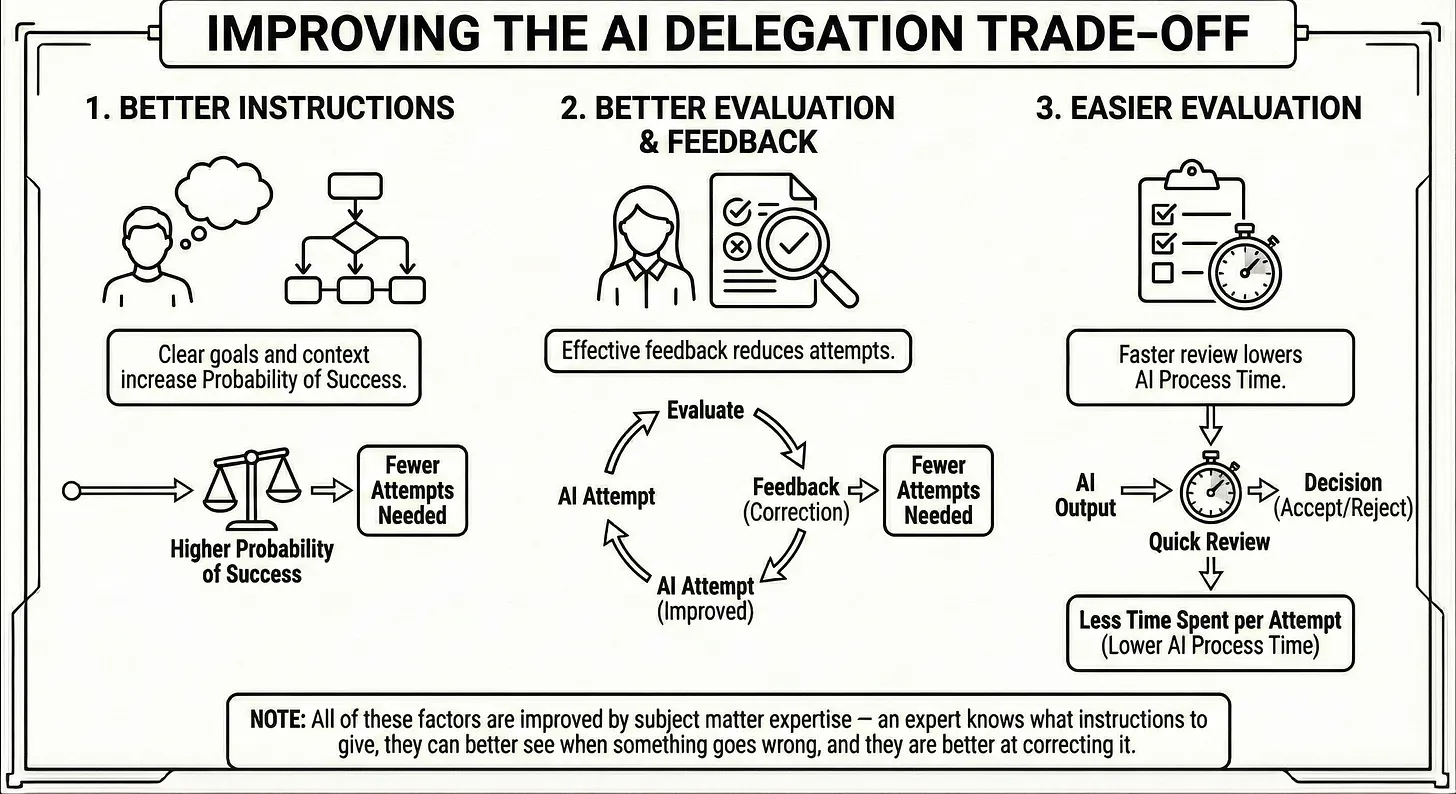
This framework helps you judge whether AI meaningfully reduces your work. For example, if you’re new to writing alt text or long descriptions for images, charts, or graphs, doing it alone can take 30 minutes or more for a single image. An AI assistant can produce a solid first draft in seconds. At first, the back‑and‑forth to refine it may take several minutes, but as you gain experience and refine your prompts, later descriptions will take only a minute or two to finalize.
That’s the real time savings: AI speeds up the parts of the process that are new, unfamiliar, or slow, while you bring the expertise and judgment that ensure the final product is accurate and accessible.
To help you move from theory to practice, we have developed three specific ‘Use Cases’ tailored to common pain points at VCU. Each one includes a tested prompt you can copy, paste, and adapt. Click each dropdown arrow to read the use cases.
Use Case #1: Inaccessible Math or CHEM PDFs
The pain point: Your Math or CHEM quizzes or exams are inaccessible paper-based PDFs.
The fix: Use VCU’s Google Gemini to make the content accessible. Gemini automatically converts the equations into accessible math and generates the Alt Text descriptions for your diagrams. You simply copy and paste this ready-to-use content into Microsoft Word,
The prompt:: Copy the text below directly into Gemini.
| Act as an Accessibility Specialist at VCU. The attached file is a PDF exam containing [Mathematics / Chemistry] content. Goal: Recreate this document as an accessible Microsoft Word document. Extract the text and formulas so they can be copied and pasted directly into Microsoft Word while remaining legible and accessible to screen readers. Context & Learning Objectives: [INSERT LEARNING OBJECTIVES HERE] Specific Instructions:Extraction: Extract all text and questions exactly as they appear.Math Format: Use standard text and Unicode mathematical symbols (e.g., ±, ∑, ∞, θ) for variables and simple expressions so they are readable as plain text. For complex formulas (fractions, exponents, square roots), write them out clearly on their own lines using standard keyboard notation (e.g., “sqrt(x+2)” or “(a+b)/(c+d)”) that a screen reader can easily parse.Structure: Use “###” to separate questions clearly.Visuals: For diagrams, provide a strictly descriptive “Alt Text” in brackets (e.g., [Alt Text: Parabola opening upward…]).Security: Do NOT solve the problems. Keep them as unanswered questions. Output format: Provide the content in a code block for easy copying. Do not use LaTeX delimiters or specialized coding languages—provide “ready-to-use” text that maintains its structural integrity when moved to a Word Doc. |
How to evaluate AI output: Microsoft Word has an accessibility checker that will help you evaluate if the output is accessible, see: Improve Accessibility with the Accessibility Checker.
Use Case #2: Alt Text or Long Descriptions
The pain point: Your department has hundreds of complex images, including lab specimens, anatomical models, and multi-angle views. You are skeptical that standard “Alt Text” can truly provide an equivalent educational experience for students who cannot see these visuals.
The fix: Use VCU’s Google Gemini to generate comprehensive “Long Descriptions.” Unlike basic captions, Gemini analyzes the visual data to describe textures, spatial relationships, and specific anatomical markers. This allows you to provide rich, pedagogical descriptions that bridge the gap between “seeing” the model and “understanding” the concept, ensuring compliance and educational equity.
The Prompt: Copy the text below directly into Gemini.
| Act as a Subject Matter Expert and Accessibility Specialist. The attached image is a [lab specimen / anatomical model / diagram] used for a university-level course.Goal: Create a concise “Alt Text” and a detailed “Long Description” that provides an equivalent learning experience for a blind student. Context & Learning Objectives: [INSERT LEARNING OBJECTIVES HERE – e.g., “Student must identify the left ventricle and understanding the flow of blood.”] Specific Instructions:Alt Text: Write a brief sentence (approx. 125 characters) identifying the object and its primary view (e.g., “Anterior view of the human heart model”).Long Description: Provide a deep analysis of the visual evidence. Describe the texture, relative position, size, and color of key features.Spatial Orientation: If the image represents a specific angle or cross-section, explicitly describe the orientation to help the student build a mental model of the object in 3D space.Tone: Objective, clinical, and educational. Output format: Please provide the Alt Text and Long Description in clear, separate sections. |
How to evaluate AI output: Check the AI-generated description against these four markers to ensure it meets VCU accessibility standards:
- Overview. Does it start with a high-level summary? A brief overview allows the reader to know if they want to continue or jump ahead. For instance: “The graph of a downward opening parabola labeled f with vertex at the point (1, 3).
- Structure. Does the description move predictably (left to right or top to bottom) and includes all critical data? Check: Did the AI mention the line style (solid vs. dashed), shaded regions (inequalities), or hollow vs. filled endpoints? These are not “visual details”—they are mathematical data points.
- Pedagogical Goal. Does it align with the learning objectives without providing the answer?
- Avoids visual shorthand. Avoid subjective words like “steep” or “sharp” Example: Instead of “the line goes up fast,” use “the line has a large positive slope.”
- Data Integrity. Does it hallucinate numbers? Check: AI often “guesses” coordinates. Always verify that the points mentioned in the text match the numbers in the image exactly.
Use Case #3: Assessment-Safe Visuals (Graphs & Charts)
The Pain Point: You want to test students on their ability to interpret a graph (e.g., “Calculate the slope” or “Identify the reaction rate”), but you worry that adding standard Alt Text will either be too vague to be useful or so detailed that it gives away the answer.
The Fix: Use VCU’s Google Gemini to create “Data-Only” descriptions. Direct Gemini to strictly list the visual facts (coordinates, axis labels, intersection points) without analyzing them. This gives screen-reader users the equivalent raw data they need to solve the problem, maintaining the rigor of your exam.
The Prompt: Copy the text below directly into Gemini.
| Act as an Assessment Developer. The attached image is a [graph / chart] used in a final exam. Goal: Write a neutral “Visual Description” that allows a blind student to answer the exam question without being told the solution. Exam Question Context: [INSERT EXAM QUESTION HERE – e.g., “Calculate the slope of the line based on the data shown.”] Specific Instructions:Objective Description: Describe the layout of the chart, the axis labels, and the range of values.Data Extraction: List the specific data points or coordinates visible on the graph (e.g., “The line passes through (0,2) and (4,10)”).ANTI-SPOILER: Do NOT interpret the data. Do NOT calculate the result (e.g., do not say “The line rises sharply” or “The slope is 2”). Strictly describe the visual elements available to a sighted student. Output format: Provide the description in a single, clear paragraph suitable for the “Alt Text” field in Canvas or Word. |
How to evaluate AI output: Check the AI-generated description against these four markers to ensure it meets VCU accessibility standards:
- Overview. Does it start with a high-level summary and include all identifiers? Check: Did it mention “Labeled f”?
- Structure. Does the description move predictably (left to right or top to bottom) and leave nothing out? Check: Did it capture “hidden” data like dashed vs. solid lines, shaded regions, or open vs. closed endpoints?
- Appropriate for the Activity. Does it use the student’s prior knowledge to keep descriptions concise. Check: If they know what a “Bell Curve” is, the description should use that term rather than describing every individual slope change
- Pedagogical Goal. Does it align with the learning objectives without providing the answer?
- Avoids visual shorthand. Did it use mathematical language? Check: Replace “going up” with “increasing” and “flat” with “constant.”
- Data Integrity. Does it hallucinate numbers? Check: AI often “guesses” coordinates. Always verify that the points mentioned in the text match the numbers in the image exactly.
If the AI’s first output is too “wordy” or gives away the answer, simply reply: “Make this more concise and don’t mention the roots; let the student find them based on the intersections described.”
Conclusion
Meeting the DOJ regulations is living up to VCU’s standard of “Uncommon Excellence.” We want our courses to be inclusive, usable and accessible.
So start today! Let AI be your accessibility partner—one document, one image, one small win at a time.
References
Google. Gemini API Documentation. Google AI for Developers.
Microsoft. Improve accessibility with the Accessibility Checker.
Mollick, E. (2024). Management as an AI superpower. One Useful Thing.
Rivin, I. (2025). Math PDF OCR benchmark: Why Gemini Flash beats Mathpix.
Virginia Commonwealth University, Office of the CIO. AI Tools and Technologies.
World Wide Web Consortium (W3C). (2018). Web Content Accessibility Guidelines (WCAG) 2.1.
Yoong, C. (2024). The 100, 150, or 200 Characters Alt Text Rule Is a Myth. chrisyoong.com.
Categories article