Canvas Feature Updates – July 2025
Rich Content Editor – Resize Controls
Production Environment Availability: 7/16/2025
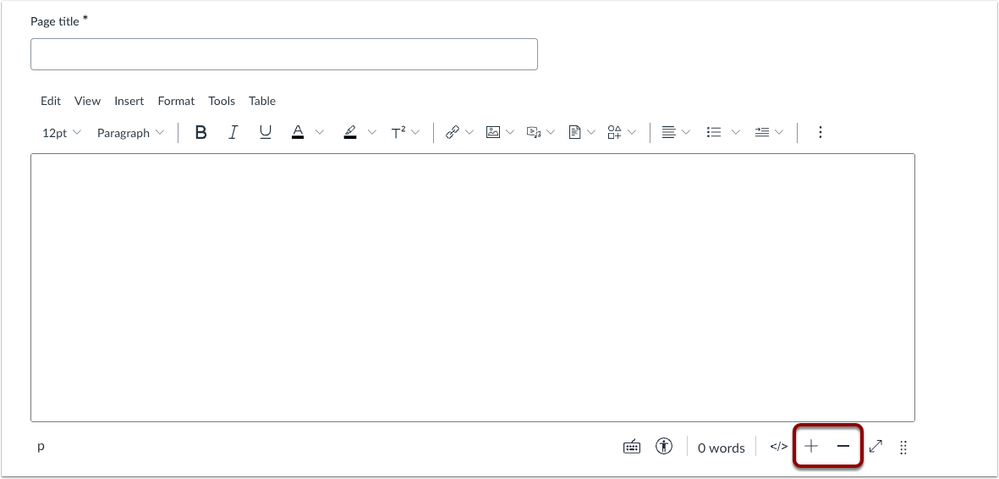
The Rich Content Editor (RCE) includes a plus and minus icon to resize the editor. This update improves accessibility by adding icons that let users easily resize the editor, providing an alternative to the previous drag-to-resize option. Use the plus and minus icons to resize the RCE.
Files – Redesigned Files Page
Production Environment Availability: 7/19/2025
Summary
The Files page is redesigned. Key updates include:
Interface & Navigation
- A temporary button allows users to switch between the new and original interface.
- Large sets of files include pagination.
- The folder tree view is removed.
- The All My Files button opens to a landing page instead of a folder tree.
File Management Enhancements
- Column headers support sorting.
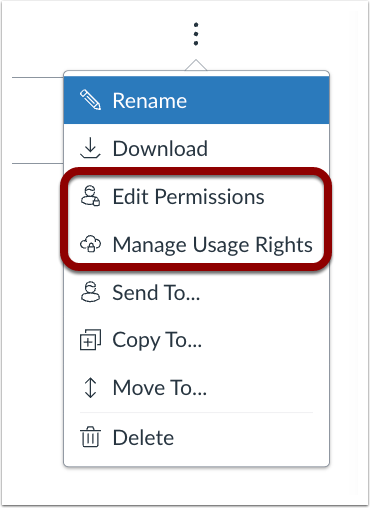
- Manage Permissions and Manage Usage Rights open in separate modals for improved clarity.
- The View button is removed.
File Interaction Changes
- Moving files or folders by dragging them into other folders continues to be supported.
- Drag-and-drop functionality for uploading files into the upload files modal remains available also.
Selection Behavior Updates
- A Select All checkbox and Individual file selection checkboxes are available.
- The Ctrl+A / Cmd+A shortcut for selecting all rows is supported.
- Ctrl+Click / Cmd+Click to select individual rows is supported.
- Shift+Click to select a range of rows is supported.
- Ctrl / Cmd+Shift+A to deselect all is supported.
- Users can bulk Download, Delete, Move and Edit Permissions and Manage Usage rights.
Link Sharing
- Preview links are no longer shareable outside the platform.
This update offers a cleaner, more intuitive interface that simplifies file organization and management. Improvements like pagination, sorting, and streamlined selection tools enhance usability, especially for users working with large file sets.
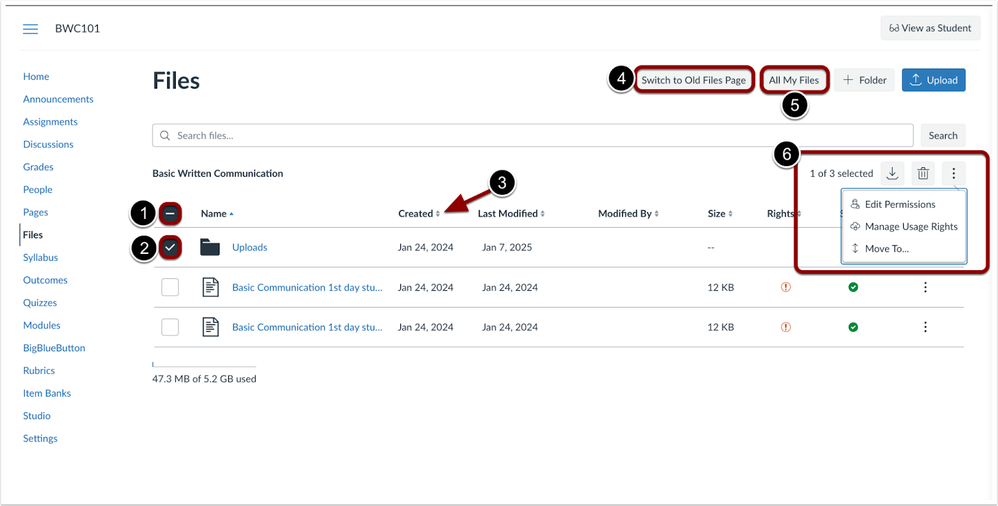
To select all files and folders at once, click the Select All checkbox [1]. To select files or folders individually, use the checkbox next to each file or folder[2]. Column headers can be clicked to sort files and folders [3]. To switch between the new and original Files page, click the Switch to Old/New Files Page button [4]. To view the files landing page, click the All My Files button [5]. Bulk action options are available when files and/or folders are selected [6].
Edit Permissions and Manage Usage Rights links open in separate modals.
User Settings – Dyslexia Friendly Font
Production Environment Availability: 7/19/2025
When the Use Dyslexia Friendly Font feature option is enabled in User Settings, the Canvas interface and the Rich Content Editor display text using the OpenDyslexic font by default. If the feature is disabled, both OpenDyslexic and OpenDyslexic Mono are available as font options within the Rich Content Editor. This feature helps improve readability for users with dyslexia and supports a more inclusive learning experience.
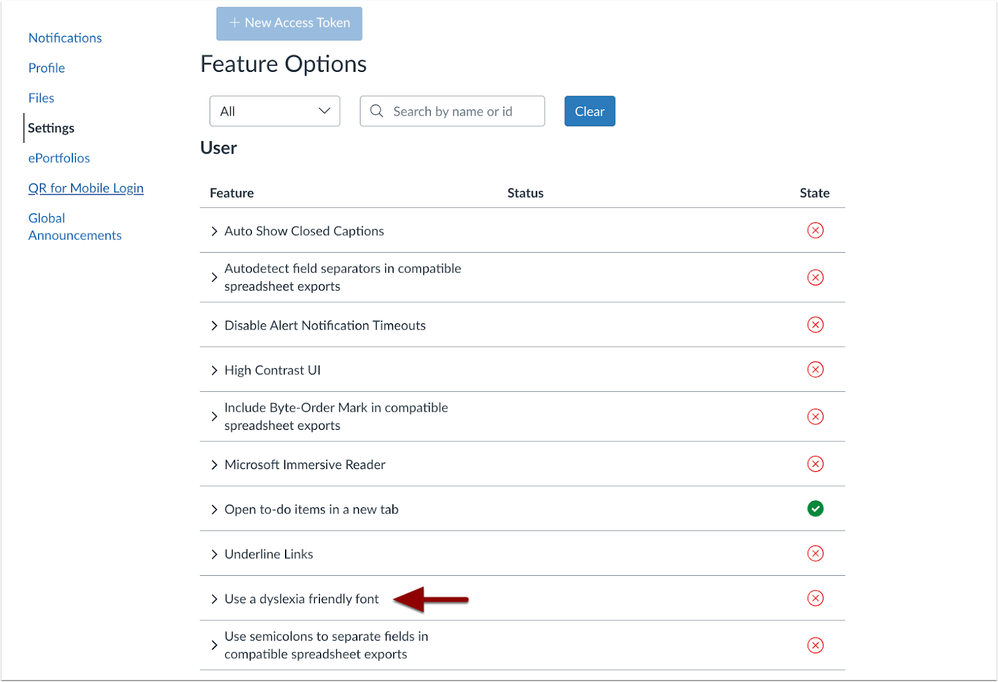
In User Settings, a Use dyslexia friendly font feature option displays in User Settings.
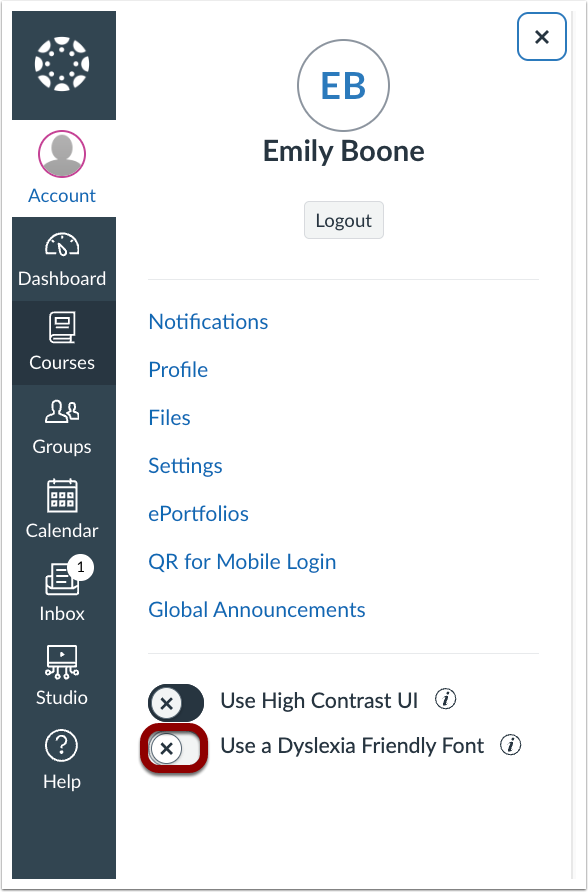
Click the Dyslexia-Friendly Font toggle to enable or disable font from the Account link in the Global Navigation menu.
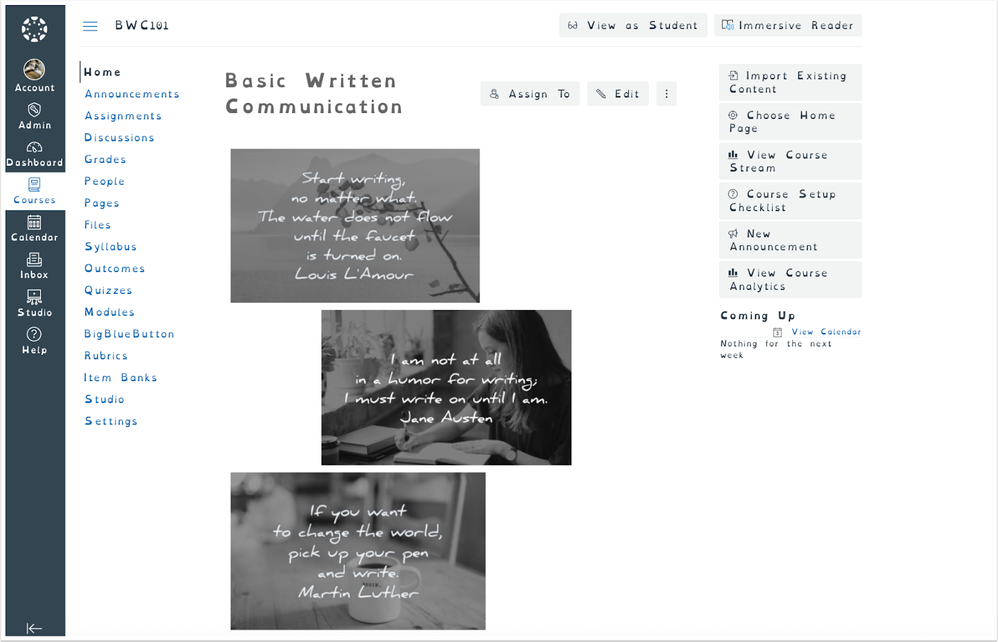
When the Use Dyslexia friendly font is enabled, the Canvas interface displays OpenDyslexic font.
Analytics – New Analytics Renamed
Production Environment Availability: 7/30/2025
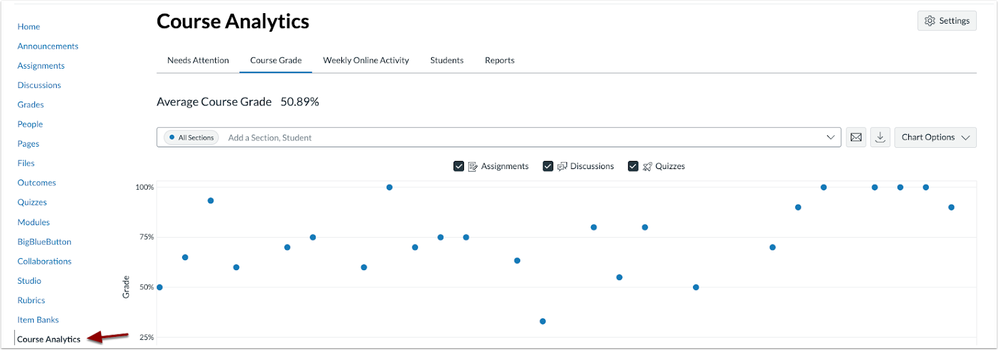
The New Course and User Analytics feature option is renamed Course and User Analytics. Additionally, in courses, New Analytics text is updated to Course Analytics. This update improves clarity and consistency. Removing New from the feature option name helps avoid confusion, especially as the feature becomes more established. It signals that this is now the standard version of Course and User Analytics.
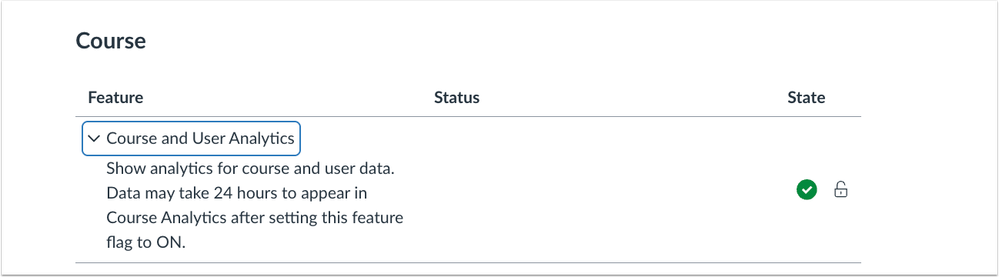
The Course and User Analytics feature option displays the updated name.
In Courses, New Analytics text is updated to Course Analytics.