Canvas Feature Updates – June 2025
Sections – Separate Fields for Date and Time
Production Environment Availability: 6/4/2025
In the Course Sections Edit page, the Start and End Date fields have separate inputs for date and time. This update provides more precise scheduling control.

SpeedGrader – Studio Media Comment Screen Capture and Auto Captioning Feature Option
Production Environment Availability: 6/4/2025
An Auto Captioning of Media Comments feature option is available allowing media comments to generate auto captioning in SpeedGrader. This feature helps improve accessibility by generating captions automatically.
Assignments: Improved Error Flow for Google File Integration
Production Environment Availability: 6/18/2025
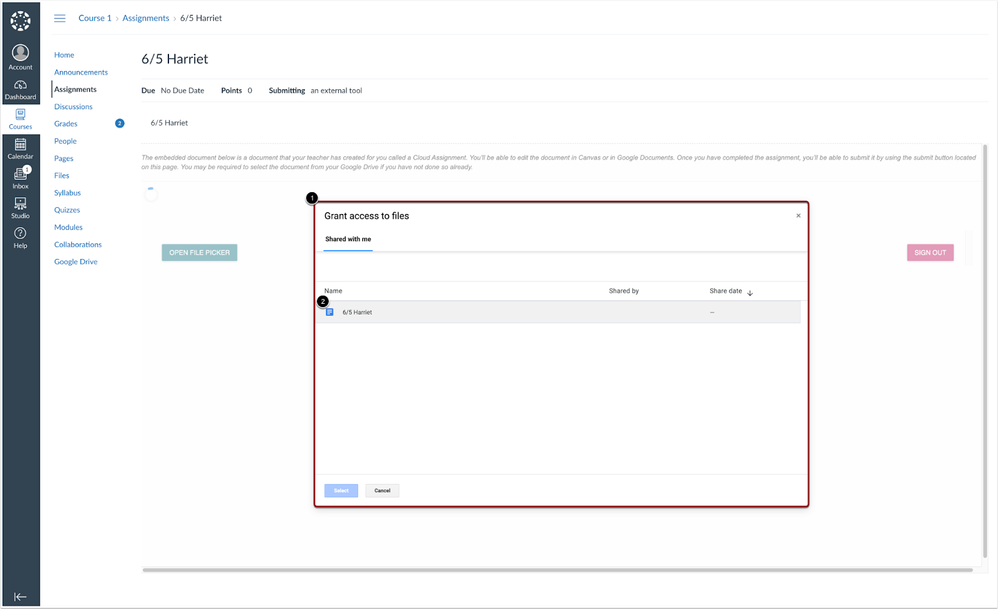
When a student lacks permission to access a shared file, they are prompted with the Google Drive file selector. This allows them to manually choose a file they have access to, ensuring it can be successfully copied to their Google Drive. This update improves the user experience when copying files to Google Drive.
When a file fails to share or copy, a Google Drive File Selector displays [1], then students must manually select the desired file to copy [2].
Discussions: Discussion Checkpoints Support Group Discussions
Production Environment Availability: 6/18/2025
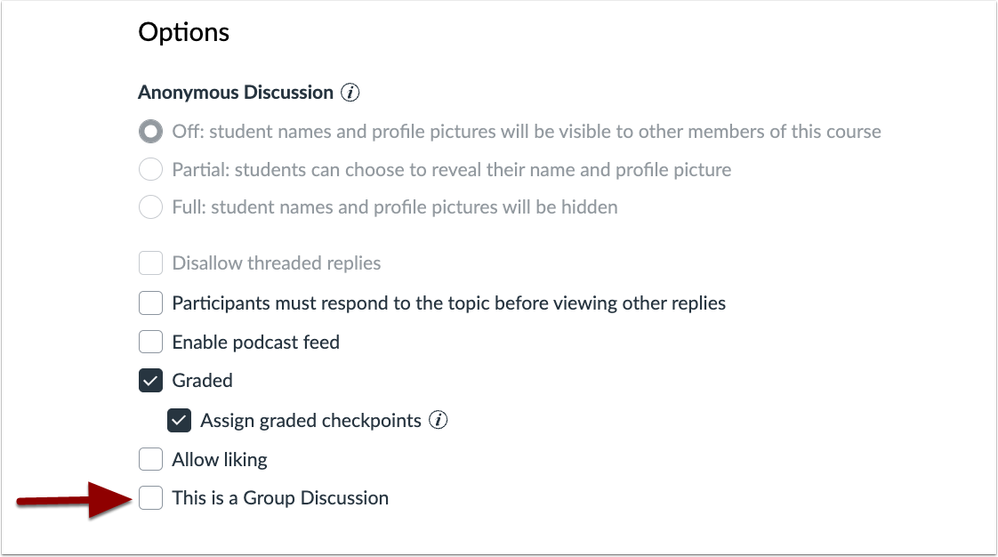
Discussion checkpoints support group discussions. Instructors can also convert an existing checkpointed discussion into a group discussion when editing. Additionally, admins can manage the Discussion Checkpoints feature option directly in their account settings. Previously, it was managed by the Customer Success Manager. This update gives instructors more flexibility by allowing them to easily adapt existing checkpointed discussions for group work.
Checkpointed discussions display the This is a Group Discussion checkbox.
New Quizzes: Rich Content Editor Media and Document Tools Disabled by Quiz Setting
Production Environment Availability: 6/18/2025
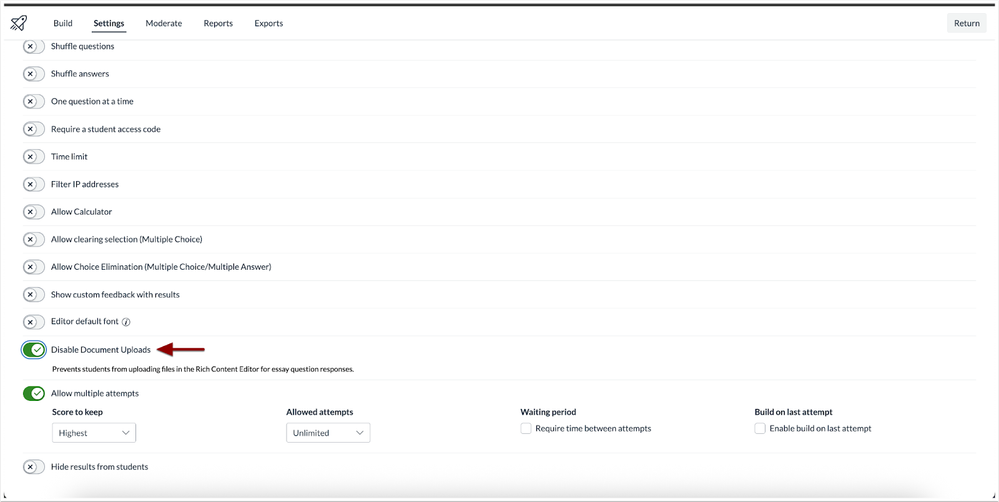
When the Disable Document Uploads quiz setting is enabled, students are restricted from using the Insert Media and Insert Document option in the Rich Content Editor. This feature helps maintain quiz integrity by preventing file uploads and ensuring consistent, text-based responses. Note: The Disable Document Uploads setting is disabled by default. This quiz setting preference is saved when a course is imported or exported.
To restrict student uploads, click the Disable Document Uploads toggle.