Canvas Feature Updates – July 2026
Navigation – Navigation Links in Account
Production Environment Availability: 7/18/2026
Sub-Account Admins can add links to the account, course and user navigation menus, and instructors can add links to the course navigation menu. Enables admins and instructors to add custom links to account, user, and course navigation menus, making it easier to surface key resources and improve access to important destinations.
Notes:
- When a course containing a link to an external resource is copied, the link remains functional in the new course.
- When a course containing a link to an internal resource is copied, references are automatically updated to point to the new course.
- When a course is exported, links are included in the exported course content.
- Instructors and students can open custom links in the Course Navigation menu in the Canvas mobile app. Creating links is not currently supported in the mobile app.
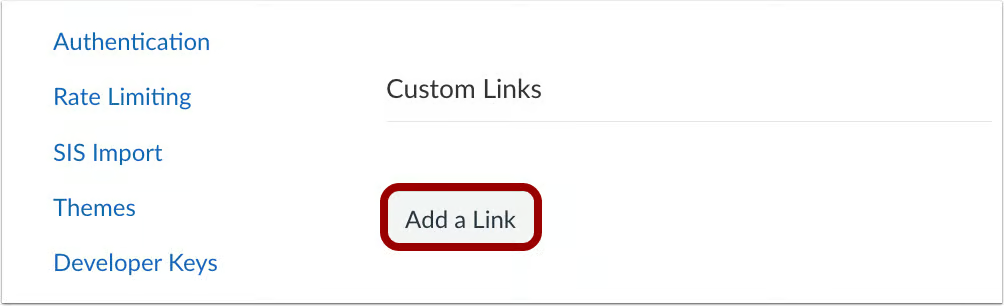
In Account Settings, within the Custom Links section, click the Add a Link button to create a new navigation link.
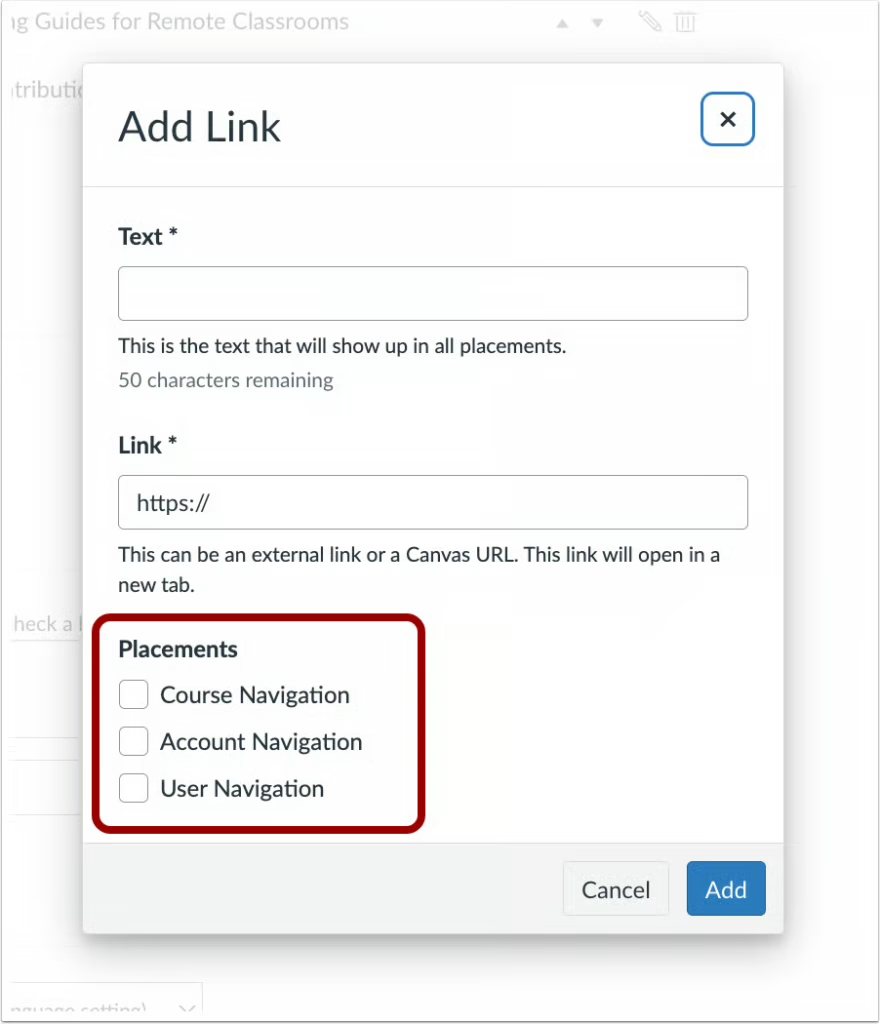
Admins can choose to place the link in Account, Course, or User Navigations.
Note: Changes must be saved before leaving the Settings page.
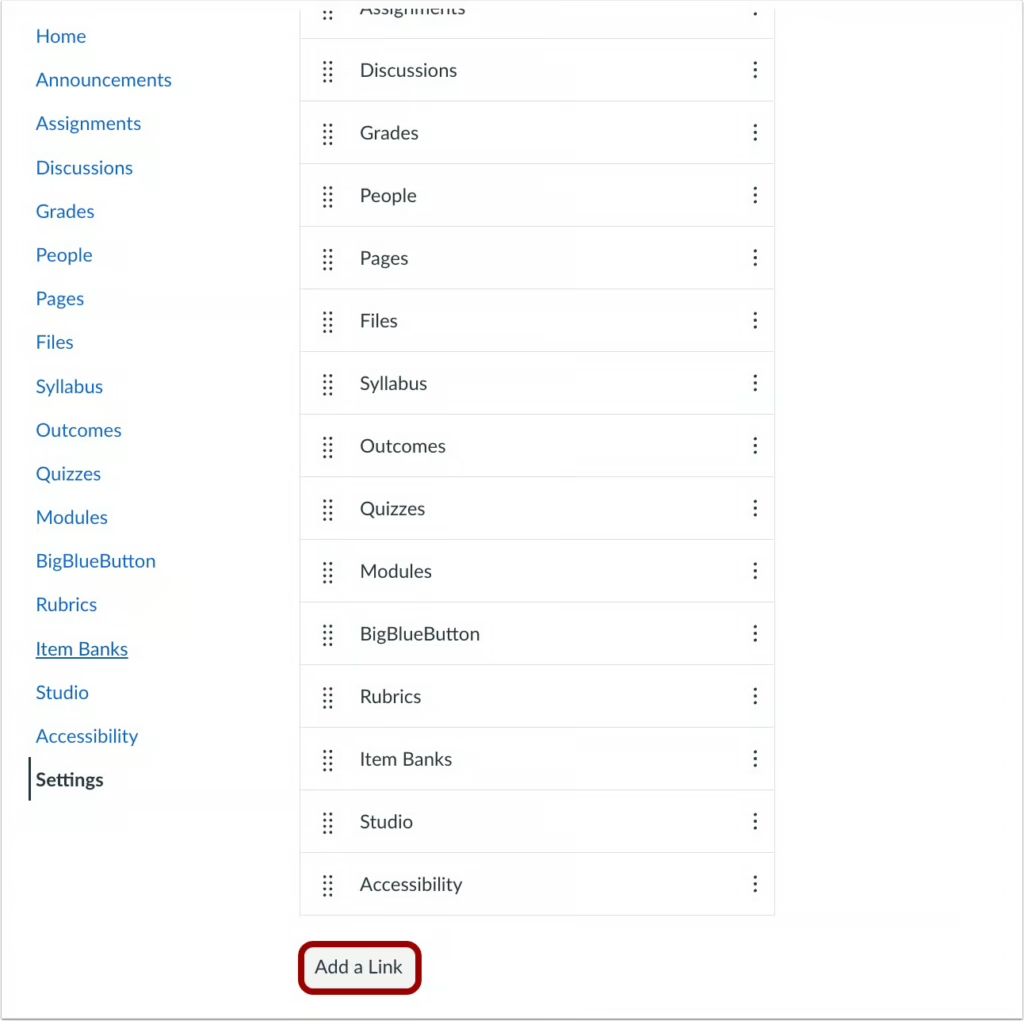
In the Course Settings Navigation tab, click the Add a Link button to add a new navigation link.
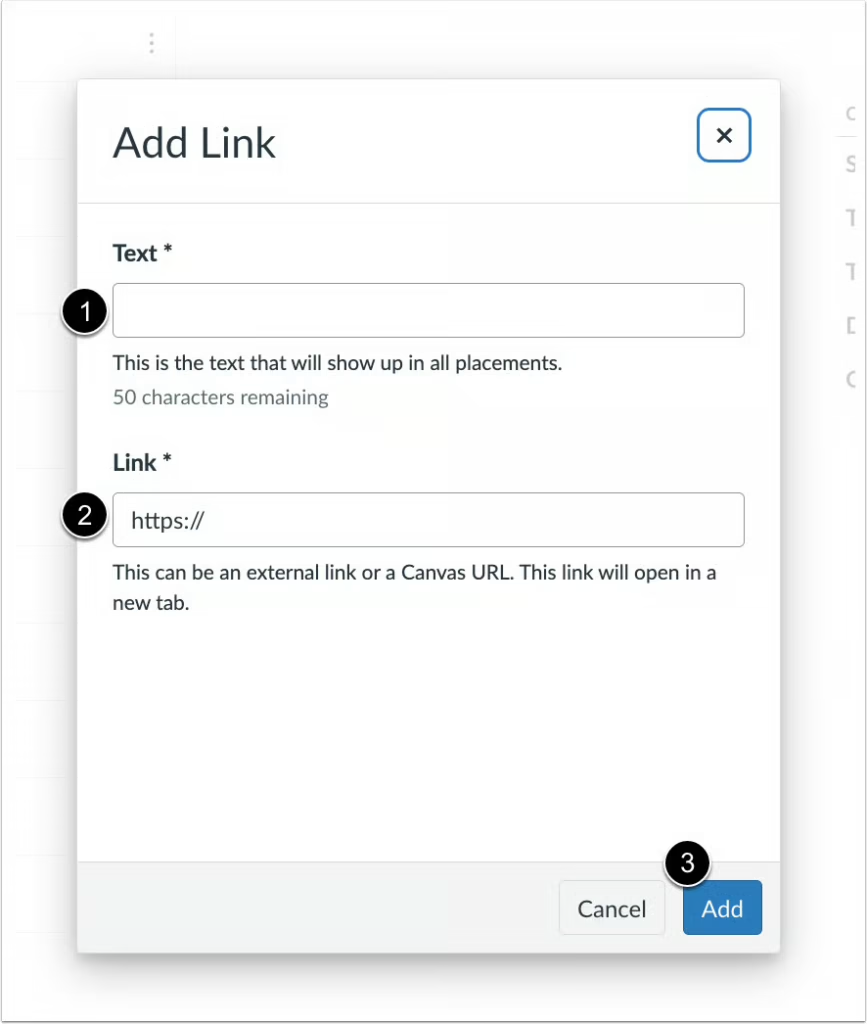
Add text [1] and a link [2]. Then click the Add button [3].
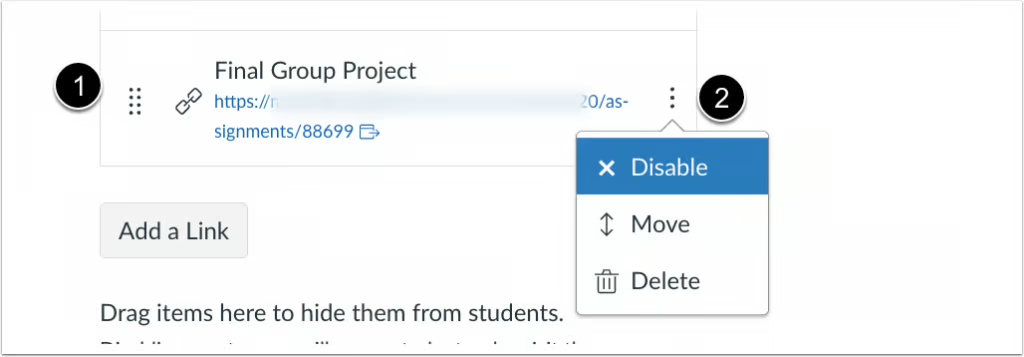
Once added, the link is automatically enabled in the Navigation menu [1]. To access additional actions, click the Options menu [2].
Notes:
- Changes must be saved before leaving the Navigation tab.
- Instructors can disable or move Course Navigation links created at the account level, but cannot delete them.