Introducing the “Marked for Deletion” Label in Google Drive
In this blog post, we’ll detail what the “Marked for Deletion” label is and what to do if you see it.
What is the label?
The “Marked for Deletion” Label is a red badge that appears on any file that is owned by an account of someone who is no longer at VCU. This bright red label is automatically applied when the individual leaves VCU and indicates that if the file is important, you need to take action to make sure the file is not deleted.
What does the label look like?
The label is a strong red badge that says “Marked for Deletion.” When clicking the label, more details will be shown and a “Learn more” link that takes you to our VCU Knowledge Base article.

What should I do if I find a file that has this label?
Contact Doctor Gee
If you come across a file that is important and has this label, don’t delay and contact Collaboration Services as soon as possible at [email protected] or submit a service request. Make sure you include as many of the following details as possible:
- The name of the file
- The link to the file
- The email address of the person who owned the file
Check for additional files
If you’ve come across a file like this, there is a strong possibility that you’ll find more by searching Google Drive. We recommend performing a search in Google Drive and searching for all files you have access to that have that label:
- Go to Google Drive.
- In the search bar at the top, click Search in Drive, and then click the “Show search options” button.

- Next to “Labels,” click Search labels, then click “File Deletion Status”

- In the “Select a field” field, click “File Deletion Status” again, then where it says “Any” click in that box and select “Marked for Deletion”.
- Click Search.
- If there are no results, then you only need to contact Doctor Gee / submit a ticket for the original file.
- If there are results and you do wish to recover them, continue below.
- Select all of the files in the list you wish to keep.
- To select multiple things in a row, click the first item in the list, press and hold “Shift”, then click the last item in the list.
- To select multiple things not in a row, hold the Control Key (Windows) or Command Key (Mac) and click the desire items
- You can also click and drag to select multiple items in a row. Start by clicking and holding the left mouse button in an area outside of the list, then drag your cursor over the items.
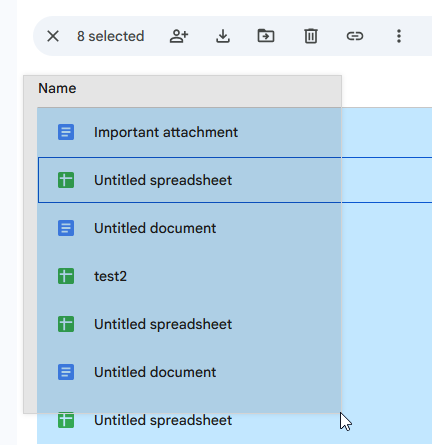
- Right-click the selection of items, hover over “Share”, then click “Copy links”.

- Include these links in your email or ticket. You can paste the links by pressing Ctrl + V (Windows) or Cmd + V (Mac).
For Questions & More Information
- How to handle Google Drive files that have a “Marked for Deletion” label or are “view-only” – Knowledge Base article
- Contact: Collaboration Service at [email protected] or submit a service request.