Using the “Voice Recorder” feature
You can now create Zoom Cloud Recordings and Meeting Summaries even when you’re conducting an in-person meeting, using the “Voice Recorder” feature on the Zoom Mobile app.
First, you’ll need to have the mobile app installed on your iOS or Android mobile device. Then, you’ll want to enable Voice Recorder on your Zoom account page (at vcu.zoom.us), under “Settings > AI Companion > Recordings.” You’ll also need to enable Meeting Summaries under “Settings > AI Companion > Meeting.”
With these settings enabled, your mobile app will display an icon to support voice recordings.
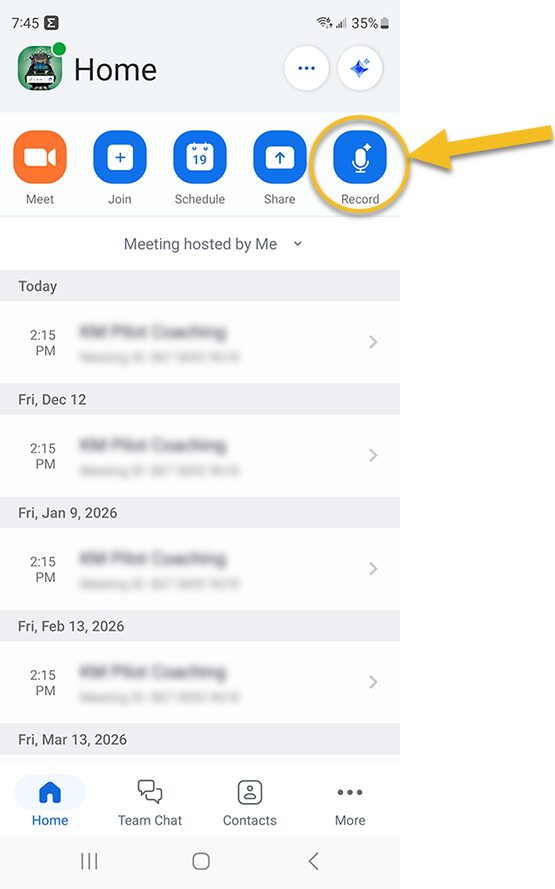
Click on it to start a recording, and you’ll see Zoom transcribing your conversation.
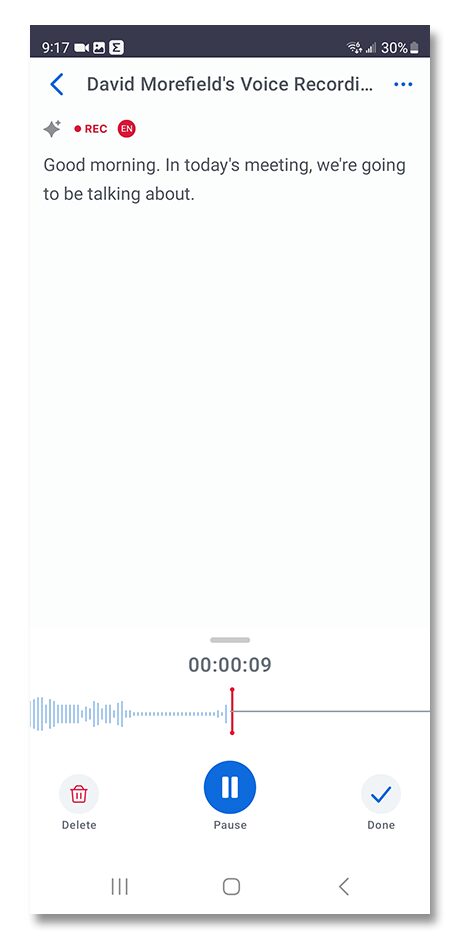
AI Companion will do its best to differentiate between you and other parties to keep track of multiple speakers. Once you stop the recording, you’ll find it saved with your other Cloud Recordings at vcu.zoom.us under the “Recordings” tab. Your Meeting Summary will be sent to you via email.
If you have questions about this or other Zoom features, free free to reach out to us at [email protected] or schedule a help session with a Zoom Support team member.
Categories AI Companion, features, recordings