Meeting Wallpapers
No doubt you’re already familiar with the virtual background feature in Zoom, but you may not have noticed that you can apply a background to the meeting itself, and not just individual participants.
By default, the “gallery view” in your Zoom meeting will display participants in windows that float over an empty, black background.
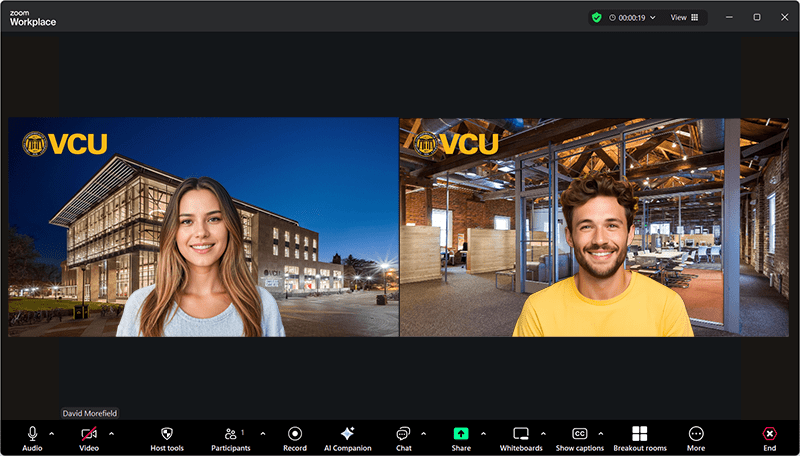
Similarly, when you share content, your camera video and the shared content float over a plain, black field. However, if you want to add visual interest to your meeting, you can fill that empty space with wallpaper from a library of colorful options.
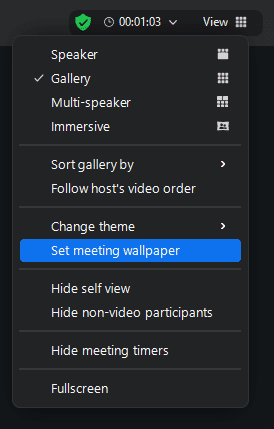
To assign a meeting wallpaper, click on “View” at the top right of your screen, and choose “Set meeting wallpaper” from the pull-down menu.
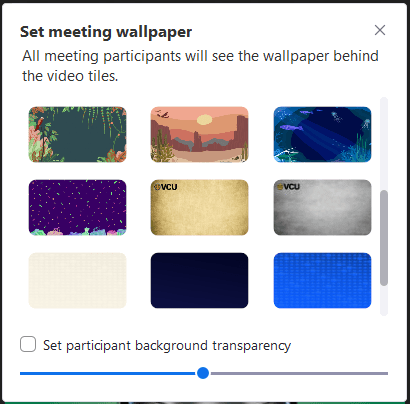
You’ll be presented with a number of preloaded options. Select one to apply to your meeting.
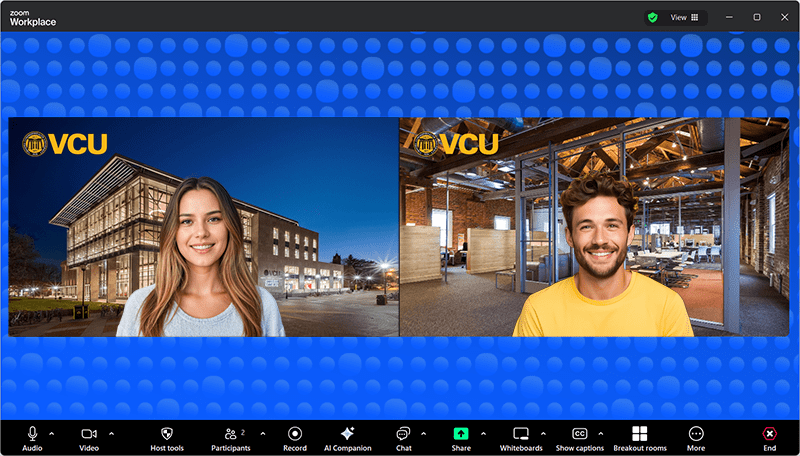
Now the formerly “empty” space behind the video tiles will feature your chosen image, adding visual interest to the meeting.
A couple of the available backgrounds include VCU branding.
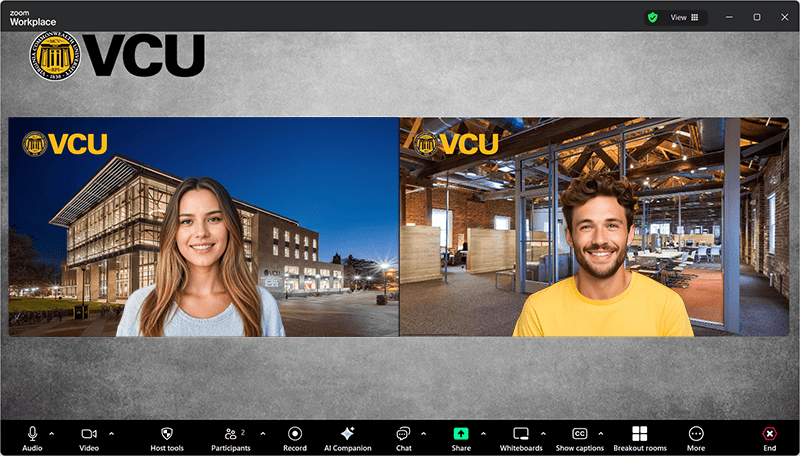
It’s also possible to adjust the transparency of the video windows to allow the background to show through more, or even set it to 100% to have the meeting wallpaper treated as the virtual background for your participants.
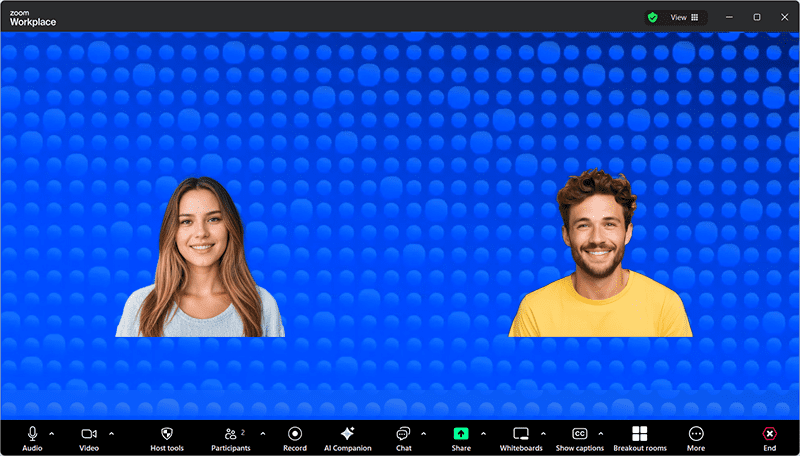
Please note that the meeting wallpaper, while visible during the meeting, will not appear in your Cloud recordings. However, it will appear in recordings you save directly to your host computer.
If you have questions about this or other Zoom features, free free to reach out to us at [email protected] or schedule a help session with a Zoom Support team member.
Categories customizations, features