Live Streaming Your Zoom Meeting
Any VCU Zoom meeting can be live streamed to reach an audience beyond the standard 300-participant limit. You can stream to YouTube, Facebook, Twitch or VCU’s Kaltura video server.
To use this feature in a meeting, click on “More” (the three dots) in your Meeting toolbar and choose “Livestream” from the resulting pop-up menu.
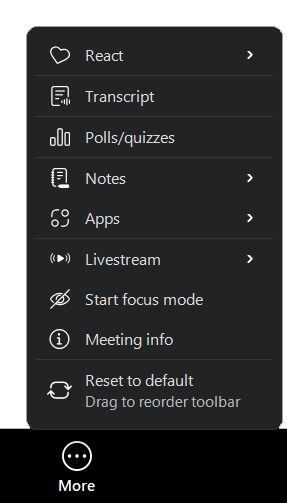
Choose the hosting platform where you have a streaming account.
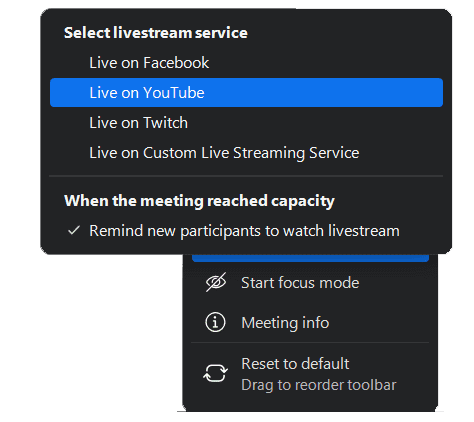
The Zoom Knowledge Base has instructions for streaming your Meetings via YouTube, Facebook or Twitch.
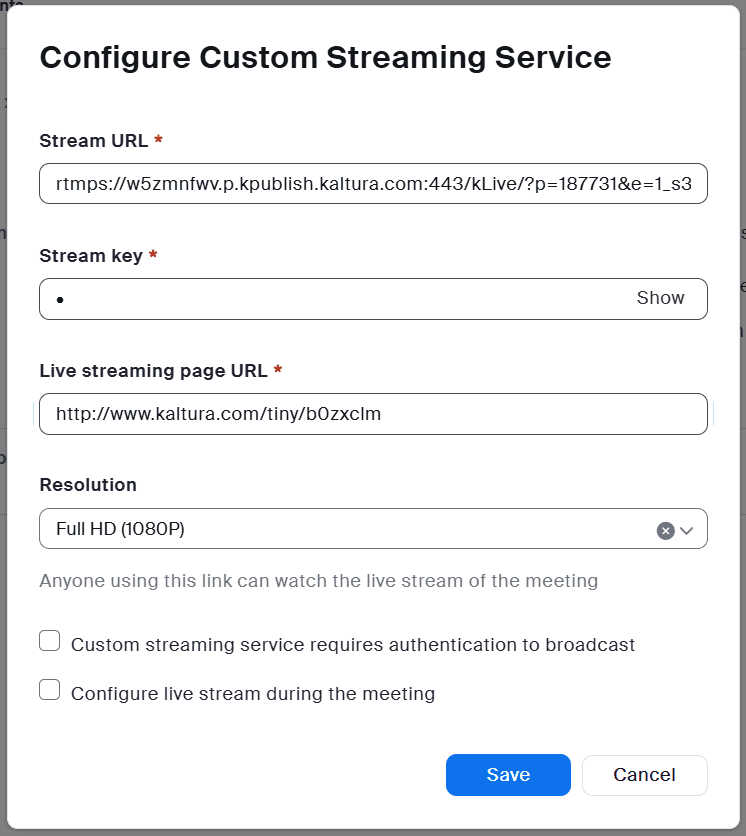
If you don’t have a streaming account on those platforms, another option is to use VCU Kaltura to host your streams. Contact us at [email protected] and ask us to create a dedicated Live Stream entry for your Zoom account. We’ll send you the settings to plug in when scheduling your meeting, including the URL your viewers will use to watch the stream. Then, with your Meeting in progress, go to “More > Livestream > Live on Custom Live Streaming Service” to launch the stream.
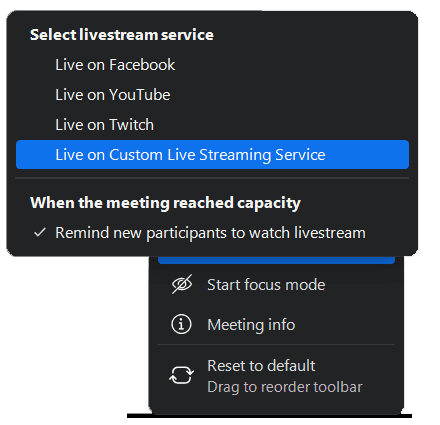
Your stream URL is valid for as long as you may need it, so feel free to re-use it as often as you like by adding the settings to any scheduled meeting.
Keep in mind that anything viewed in the live stream will be a few seconds behind real time, and anyone watching the stream will be a “passive” viewer without the ability to interact via audio, chat, etc. Still, if you know your audience will exceed VCU Zoom’s 300-participant limit, live streaming can be a very helpful tool.
As with all Zoom features, you’re encouraged to reach out to us at [email protected] with any questions or concerns.
Categories features, integrations