Your digital workspace should adapt to you. Whether you’re coordinating across time zones or require specific accessibility features, adjusting your settings in RealSource only takes a few clicks.
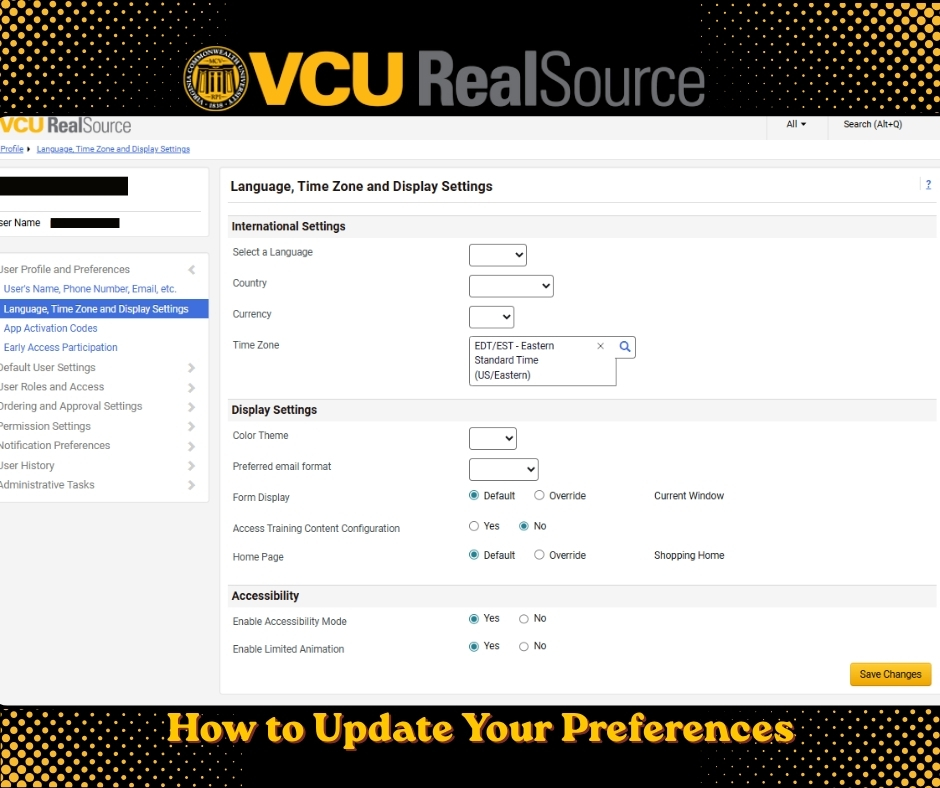
How to Update Your Preferences
Follow these steps to customize your account:
Log in to the RealSource platform.
Click the person icon in the top-right corner.
Select User Profile Preferences.
Adjust your Language, Time Zone, and Display Settings.
Scroll to the bottom to find Accessibility Options.
Select “Yes” to enable these features, then click Save.
Why Customize?
Updating these settings ensures your project deadlines align with your local time and your interface is optimized for your specific needs.
By enabling Accessibility Options, you activate enhanced support for screen readers and keyboard navigation—ensuring that RealSource remains a powerful tool for every professional.
Pro Tip: Always remember to hit Save at the bottom of the page to ensure your new preferences take effect immediately!
Need help? Reach out to our support team if you have questions about optimizing your profile!