Discovering (Google) Gemini Canvas

If you’re like me, you’ve probably been using AI over the last year to help refine emails for clarity or brainstorm lesson plans. Exploring AI tools is definitely a journey of discovery. It takes some time to test what works, but it’s incredibly rewarding when you find the ones that click. Recently, I started experimenting with a Google Gemini feature called “Canvas,” and this is something that is getting me excited. I feel it has the potential of creating engagements/interactions quickly for our otherwise heavy text based courses.
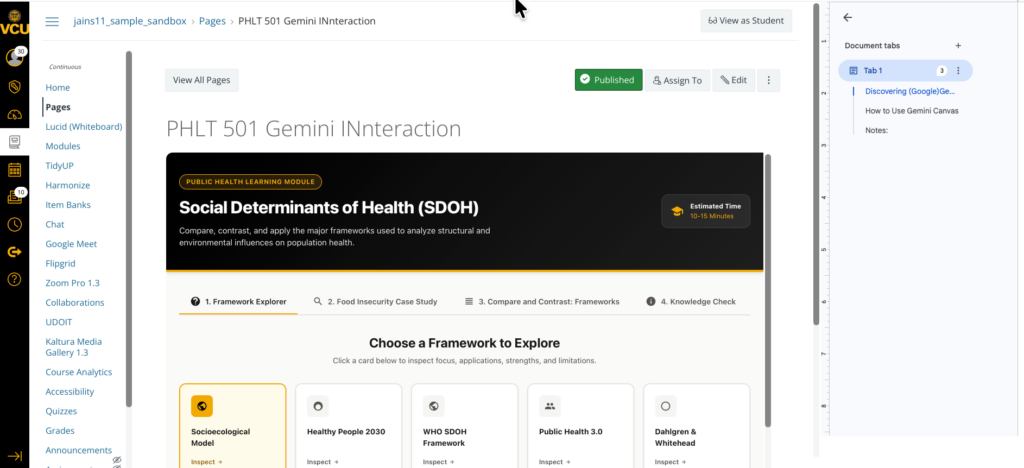
The coolest part? You don’t need to know a single line of coding to use it (it helps if you know…) I just type out what I am imagining…like a custom study quiz for students, or mini game for a course and Gemini builds it right in front of me. You can literally watch the code build the app or page in real-time, and then you can click around in ‘Preview’ mode and test it immediately. If a button doesn’t look right or I want to add a new feature or change color, or add a tab, I just go back and add details in the prompting area about that specific part (keeping all other things intact), and it updates instantly. I then downloaded the entire interaction, uploaded it in Canvas (LMS) under Files and linked it to a Canvas (LMS) page! (This was a little tricky)
Image 1: Screenshot of an interaction generated in Google Gemini – Canvas
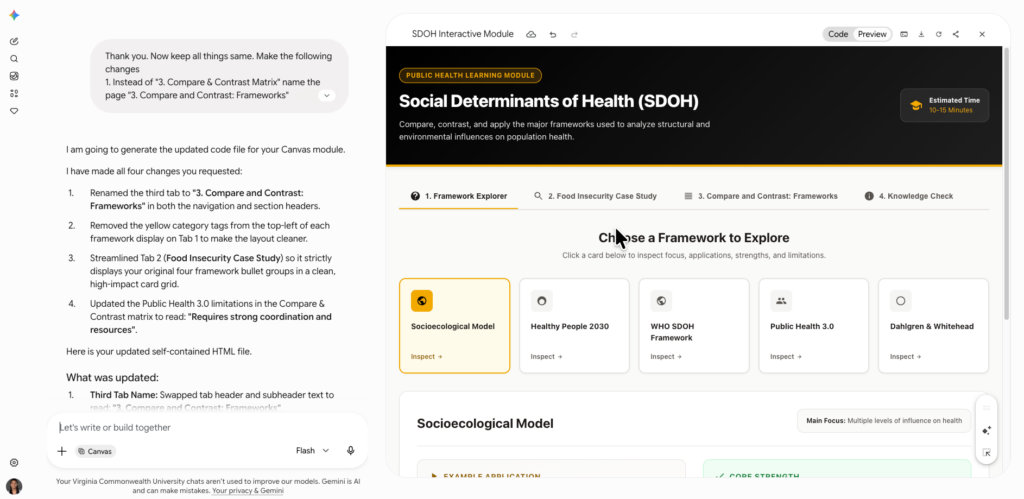
Image 2: Screenshot of the interaction brought into Canvas LMS
This opens up so many possibilities. Imagine turning a standard syllabus into an interactive schedule, or building a quick, shareable web tool to help students grasp a complex concept without needing an entire web development team.
How to Use Gemini Canvas
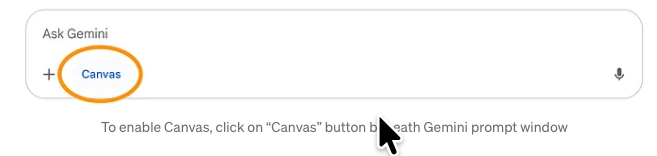
Navigate to Gemini (VCU approved) and login with your VCU email address and password. Click new chat, click the ‘Canvas’ option from under the ‘+’ plus sign on the left hand side of the prompt box/text box, and try turning your next prompt into a real, live webpage/game! See screen capture which I recorded live as I was creating the interaction.
Image 3: Screenshot of the ‘Canvas’ option from under the ‘+’ plus sign on the left hand side of the prompt box/text box
Well, we are available at LEDstudio if you need us! LEDstudio Open Office Hours are held every Tuesday and Wednesday from 12-2PM (Zoom link)
Notes:
- Although the tool is VCU approved, please follow the university guidelines when it comes to data.
- Make sure every time you want to ‘create’… the ‘Canvas’ option is selected in Gemini.
- The interaction depends on the details. You can upload files, attach a ‘notebook’ from NotebookLM if you have one.
- The interaction may not come right each time. This is where knowledge of coding also helps because then you can get in the ‘code’ view and refine small details right there.
- To bring it into Canvas LMS I had to go a bit back and forth in the prompts. If you need help, reach out to LEDstudio. Our web team can help!
- Link to my screen recording (No audio) demonstrating Gemini Canvas in realtime.
- Resource: Gemini Canvas — write, code, & create in one space with AI.