Tips for Incorporating Guest Speakers into Your Course
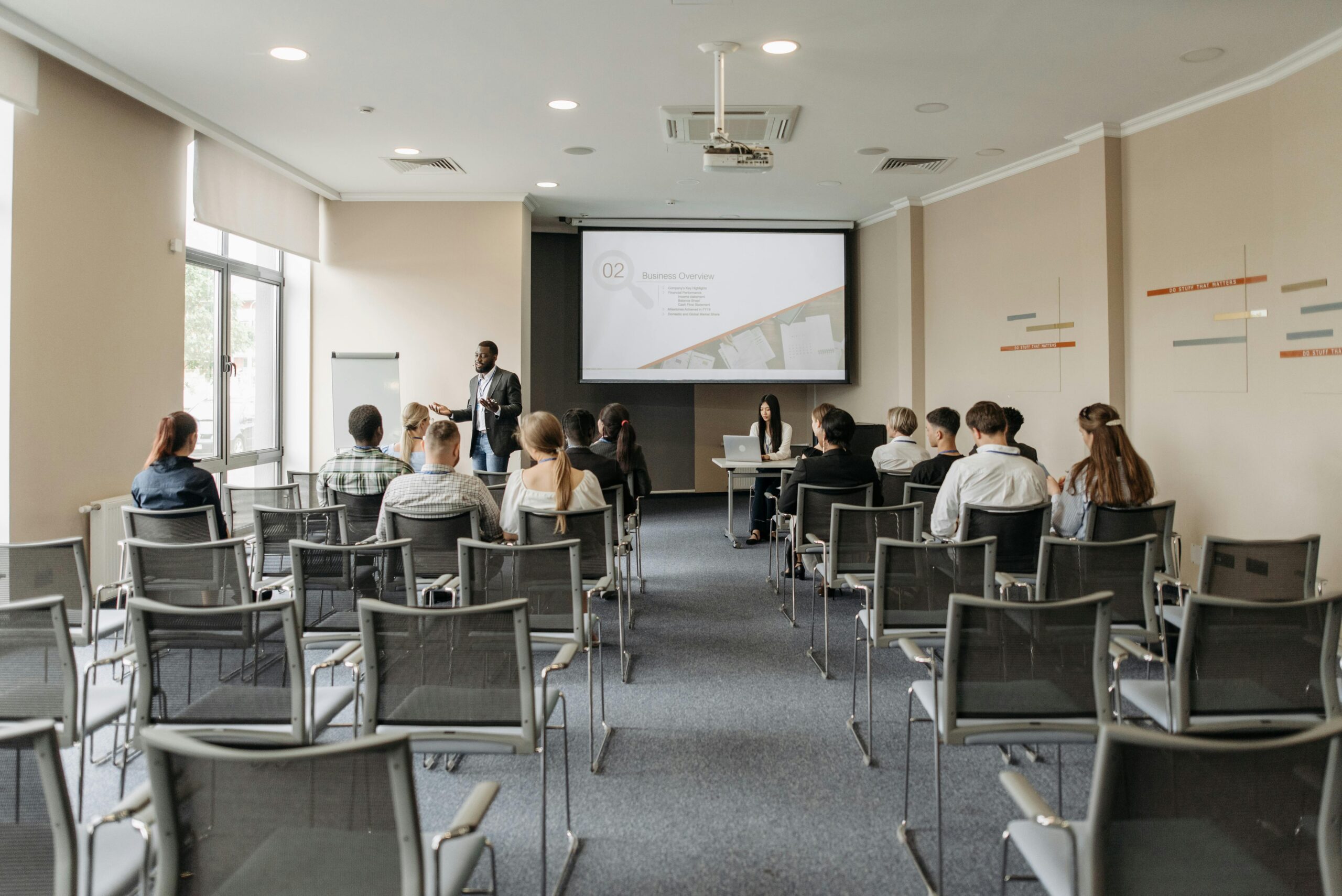
The LEDstudio Media Team has helped many faculty record and share guest speaker sessions, both in person and online. Whether you are inviting an expert to join your class on Zoom or hosting them in person, a little preparation can make the recording look and sound its best.
Start by thinking through the logistics. Will you be recording in Zoom or in person? Is your guest presenting slides or materials? Will this be more of a conversation or an interview-style discussion? Are you giving your guest the questions ahead of time? Some of the best moments can come from spontaneous student questions, but if you plan to reuse the recording in future semesters, you will need to record without students in the shot unless you have received their permission to be recorded.
It is also important to let your guest speaker know how you intend to use the recording. Will it be shared only in Canvas for your students, or might it be made public later, perhaps on YouTube or featured in a future blog post like this one? Setting expectations early helps everyone feel comfortable and informed.
If you are recording in Zoom, take a moment to explore the recording options such as gallery view, speaker view, or the setting to hide participants. Choose what best fits your format, and above all else, remember to hit record. When a lot is happening during a live session, that small step can be easy to forget.
Avoid product placement. For example, drinking from a soda can during the interview may draw attention away from the content. Make sure laptops are placed on stable surfaces, not held in a lap or balanced on a swivel chair. You want to avoid any unintentional motion that can be distracting for your viewers. Before you begin, do a quick audio check. Zoom does a lot to help clean up background noise, but it is still worth confirming that your microphone sounds clear and your environment is quiet.
The LEDstudio Media Team often adds graphics to guest speaker or interview recordings. These are called lower-thirds and they display the guest’s name and title on screen. It is always a good idea to confirm exactly how your guest would like their name and credentials to appear. In higher education, this includes the proper letters after their name such as PhD, MD, JD, or any other earned credentials. Instead of using it on a lower-thirds graphic, it can be on a thumbnail or title slide that will appear as the preview image when the recording is embedded in your course.
If your guest is sharing slides, ask them to send the files to you before the session. If they plan to present with the slides during the talk, select the appropriate recording setting in Zoom to capture both the slides and the speaker. This small detail can save you time and confusion later when editing or posting the video.
Think about how you plan to begin and end the recording. Having a brief introduction and a closing statement gives your video a polished, complete feel. You might introduce your guest by name and title, mention their area of expertise, and explain how their insights connect to your course. When closing, thank your guest for sharing their time and experience, and let your students know what to take away from the session.
And on that note, we should close out this with our final statement: The most important part of recording a guest speaker is to make the experience engaging and enjoyable. Set a welcoming tone, thank your guest, and highlight what your students will find most valuable from their contribution. With a little planning, a few technical checks, and attention to detail, you can create a professional, high-quality recording that adds tremendous value to your course.
Get a feel for the style you want for your guest speakers, check out our Playlist of guest speakers we have recorded for VCU Online courses!
This post was contributed to by all the members of the LEDstudio Media Team.
Categories article, multimedia, teaching online, technology integrated teaching, video