Using the Zoom Web App
The Zoom Web App provides an alternative method for hosting and joining Zoom meetings when the desktop client may be unavailable. This can be useful if you’re having difficulties with the installed client or if you find yourself using a device where you lack the necessary administrator rights to install Zoom.
When you log in at vcu.zoom.us, the Web App is available from the top navigation menu on every page. Click on the link to see a pull down menu that takes you to the “Home” page.

Here, you’ll find that the Home page mirrors what you’re used to seeing with the desktop app, including the ability to launch, schedule or join a meeting, or interact with AI Companion if you’ve enabled it.
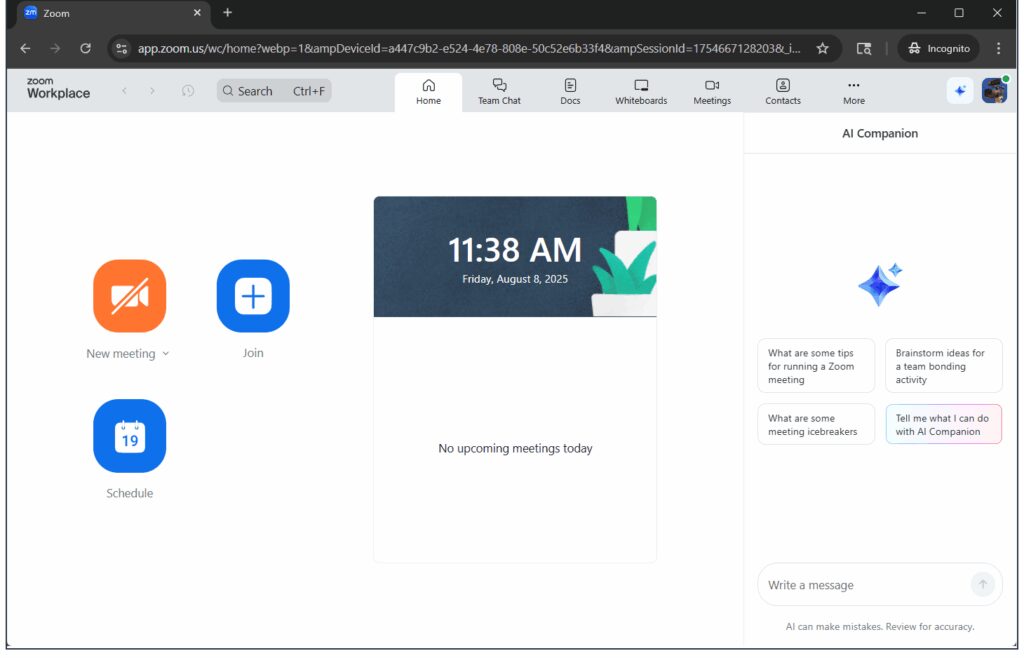
The first time you launch or join a meeting from the Web App, Zoom will ask for permission to use your webcam and microphone.
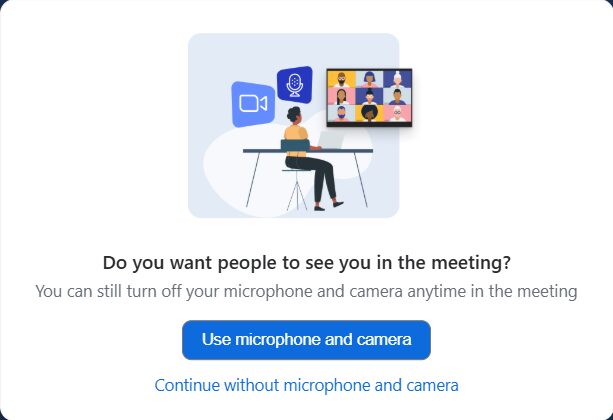
This will lead you to another screen to verify your consent.
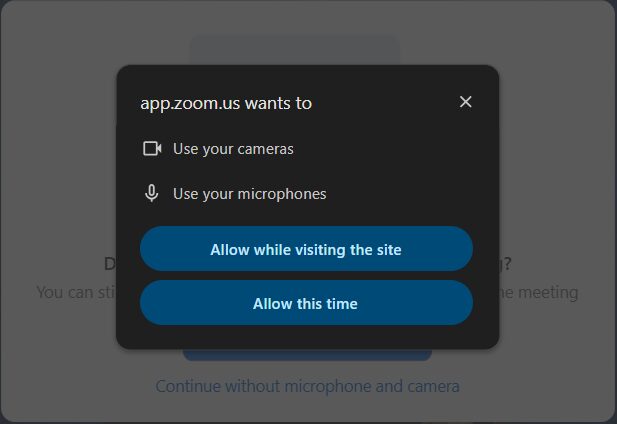
Once launched, the Web App will provide you with access to all the features you’ve enabled for your account (polls, breakout rooms, captions, chat, whiteboards, AI Companion, etc) but one important difference is that you’ll only be able to record to the Cloud, not directly to your computer.
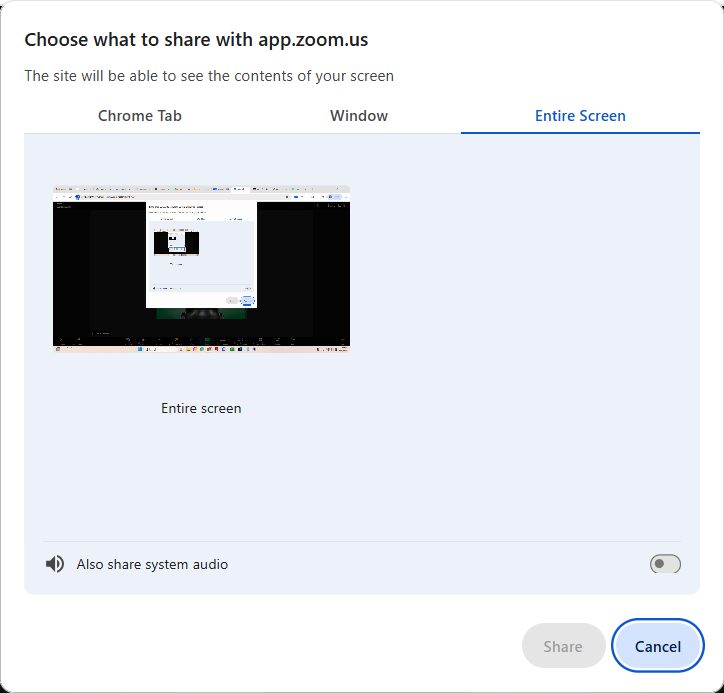
As with the desktop app, you’ll be able to share your entire desktop, a specific browser window (other than the one you’re already using to host the meeting) or another application. However, some advanced sharing options available with the desktop app — like the ability to share images from additional cameras, play videos from Zoom’s built-in player or share just a “portion of screen” — will not be available with the Web App.
You may find other limitations compared to the desktop client, but in most respects using the Web App will provide you with the same experience you’ve come to know. Keep it in mind as a handy resource to help you out of a tight spot, or even as your “Plan A” if you find you prefer it.
As always if you have any questions or concerns about this or other Zoom features, you are encouraged to reach out to us at [email protected].
Categories features, troubleshooting