Team Teaching: Canvas Gradebook

Team Teaching is a series of blog posts designed to support team teaching at the School of Nursing. In this series you will find best practices in team teaching and managing your Canvas course while working on a team.
Grade Posting Policy: Automatic or Manual?
The default in Canvas is that as soon as you grade an assignment, the student gets notified of the grade they received. This setting is known as the course or assignment grade posting policy. One way to manage grading in a course that is taught as a team is to set different grade posting policies on different assignments.
Set the Grade Posting Policy on an Assignment
To set a grade posting on an individual assignment, go to the Canvas gradebook. Go to an individual assignment column and hover over the name of the assignment. To the right of the assignment name, you will find an assignment menu. Select the menu and at the bottom you will see Grade Posting Policy. For more detailed information, please review the following Canvas Guide: How do I select a grade posting policy for an assignment in the Gradebook?
Note: changing a grade posting policy on an assignment should be done before entering the grades for the assignment.
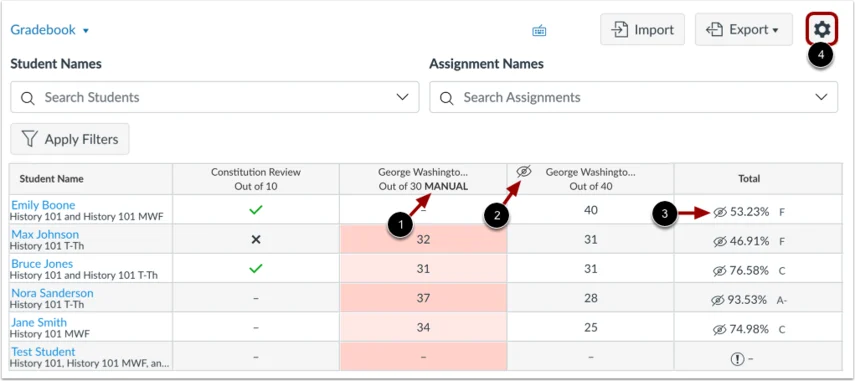
When a manual posting policy has been applied to an assignment, the assignment header displays the Manual label [1]. This label indicates that a manual posting policy is currently in place and future grades are hidden from student view.
Once a submission has been graded, the assignment header displays the Visibility icon [2]. This indicates that there are grades within the assignment that must be posted before they can be viewed by students.
When grades are hidden from student view, the Total column also displays the Visibility icon [3]. This indicates that the total grade in the Gradebook differs from the total grade viewed by the student.
To manage the default posting policy for a course, click the Settings icon [4].
Post Grades by Section
Once an assignment has a manual posting policy, you will have options on how to post grades. Go to the menu for the assignment and choose Post grades. For more detailed information see the Canvas Guide: How do I post grades for an assignment in the Gradebook?
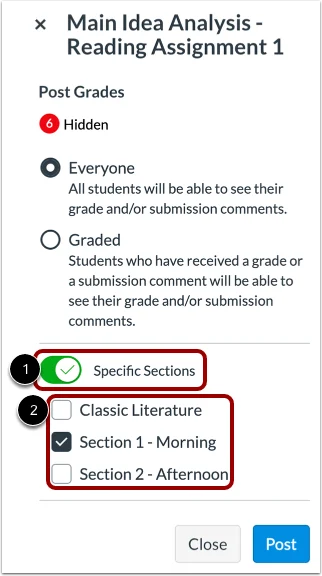
Once you choose to post grades, you will have posting options. If you are on a teaching team you may be asked to post grades only for your section once you have finished grading.
Select > Graded > Specific Sections and select the section for your team.
Canvas Guides
The images used in this post are from the Canvas Guides listed below:
- How do I select a grade posting policy for an assignment in the Gradebook?
- How do I post grades for an assignment in the Gradebook?
- How do I use the icons and colors in the Gradebook?