Team Teaching: Post Announcements

Team Teaching is a series of blog posts designed to support team teaching at the School of Nursing. In this series you will find best practices in team teaching and managing your Canvas course while working on a team.
Post Announcements by Group or Section
If you are teaching a course with others, you may be responsible for only 1 group or section of students. Communicating with the students in your section is possible by posting an announcement only to your section or your group. The lead faculty for your course will direct you to the best method to use.
Post Announcements to a Group Homepage
Groups are small subsets of students that are organized for specific projects or assignments. If you are new to using groups as an instructor, review the Canvas Guide: How do I view all groups in a course as an instructor? To view the groups in your course, visit the People page from the Canvas course menu.
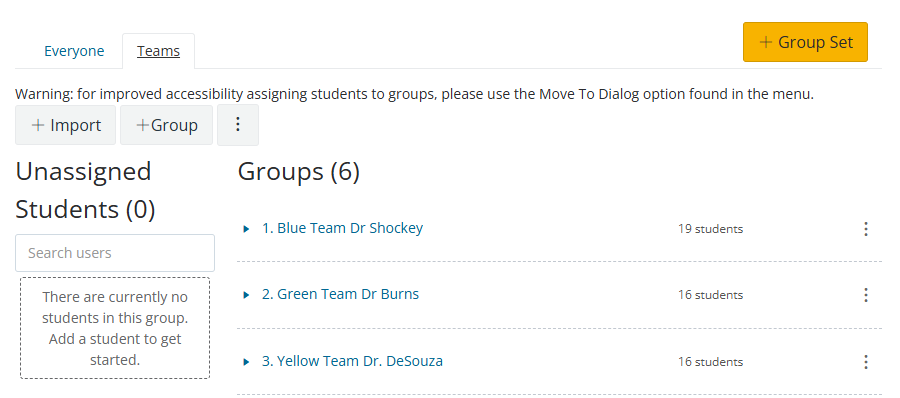
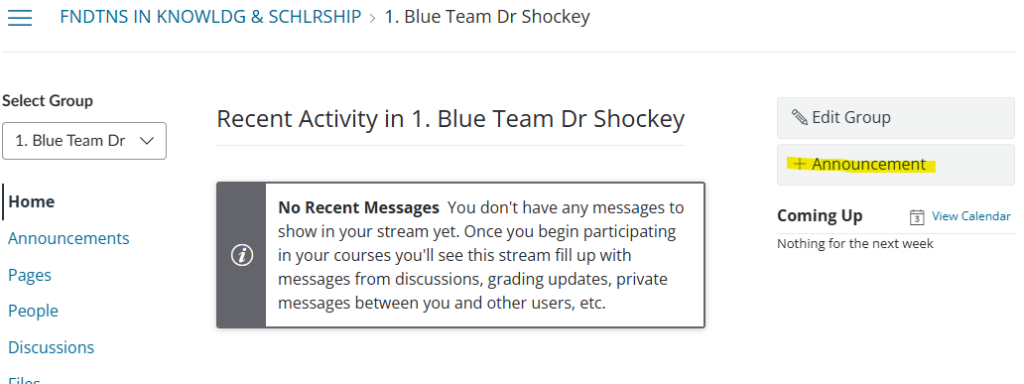
To post an announcement to your student group, click the 3 vertical dots to the right of your group’s name and choose Visit Homepage. Once you are on the homepage of your group, press the + Announcement button on the right side of the screen.
Posting an Announcement to a Section
Announcements can be posted to all sections in a course or to a specific section. For a deeper dive into course announcements, review the Canvas Guide: How do I use the Announcements Index Page?
Go to Announcements from your Canvas menu, and choose the + Add Announcement button. Give your announcement a title, and some content. Under Post to…select “All Sections” or choose a specific section using the drop down menu.
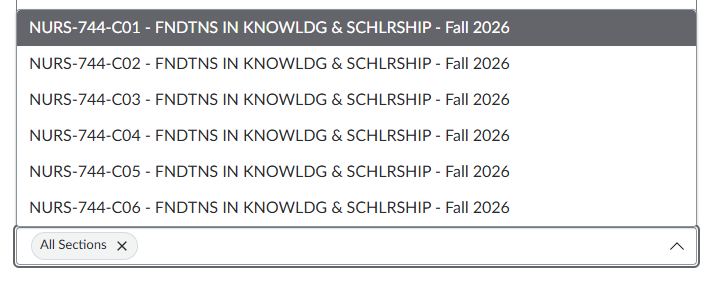
Selecting the drop down menu displays all sections in the Canvas course. Once you select your section, the Post to menu will be replaced with the name of your specific section. After choosing your section, scroll down the page to the Publish button in the lower right corner of the screen.
Canvas Guides
- How do I add an announcement in a course?
- How do I view all groups in a course as an instructor?
- How do I view my Canvas groups as a student?