Canvas Feature Updates – November 2025
User Navigation – Canvas Portfolio
Production Environment Availability: 11/15/2025
Summary
The Canvas Portfolio is no longer in feature preview and is enabled for all institutions in the User Navigation menu. It is not available for Free for Teacher accounts.
Notes:
- Most Canvas Portfolio features display in beta on October 20, 2025 and in production on November 15, 2025. However, the updated placement will be available in both beta and production on November 15, 2025.
- The Canvas Portfolio feature user group will close for participation on February 13, 2026. After this date, current members can continue to view information in the group in a read-only format.
- The Student ePortfolios, Student Pathways, and Canvas Program Assessment features are being deprecated. See Additional Resources for details.
Canvas offers two types of portfolios to support both learner-driven and instructor-guided use cases: Showcase Portfolios and Evaluation Portfolios. These tools support storytelling, assessment, and the validation of competencies.
Showcase Portfolios help learners tell their own stories and highlight growth beyond the classroom.
- Enable learners to build personalized portfolios organized by theme, experience, or timeline.
- Support multiple evidence types, including Canvas submissions, media uploads, and reflections.
- Let learners use tags to emphasize competencies and themes, aligning their work with personal or professional goals.
- Offer export options as PDF or HTML, and allow bulk downloading of uploaded portfolio files.
- Facilitate external sharing through public links or direct publishing to LinkedIn.
Evaluation Portfolios allow instructors to support structured assessment and track learner progress over time.
- Portfolios can be generated using one or more Canvas courses as their foundation, with links to key assignments and competencies.
- Educators can establish evidence requirements to align expectations and support consistent demonstration of competencies.
- Align portfolio evidence with institutional competencies to help learners demonstrate specific skills and knowledge.
- Monitor progress with real-time visibility into submission status and portfolio completion.
- Streamline grading by using portfolio tasks with Canvas assignments and SpeedGrader.
- Review learner reflections and narratives to better understand learning and growth.
- Support feedback and iteration with options for revisions and resubmissions.
Change Benefit
This update enhances the Canvas portfolio experience with a more intuitive design and flexible tools. Instructors can assign structured, competency-based portfolios, while learners can showcase academic and co-curricular work with features like reflections, tagging, and shareable links—supporting meaningful assessment and real-world readiness.
In the Account Settings Apps tab, admins can change the placement of the feature.
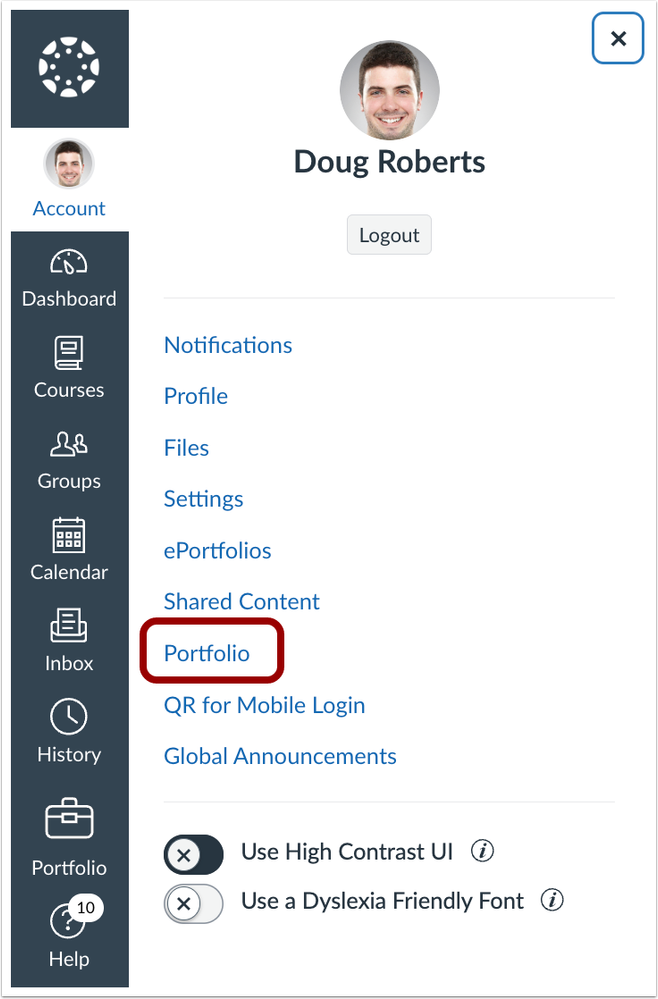
In the User Navigation menu, learners and instructors can access their Portfolio by clicking the Portfolio link.
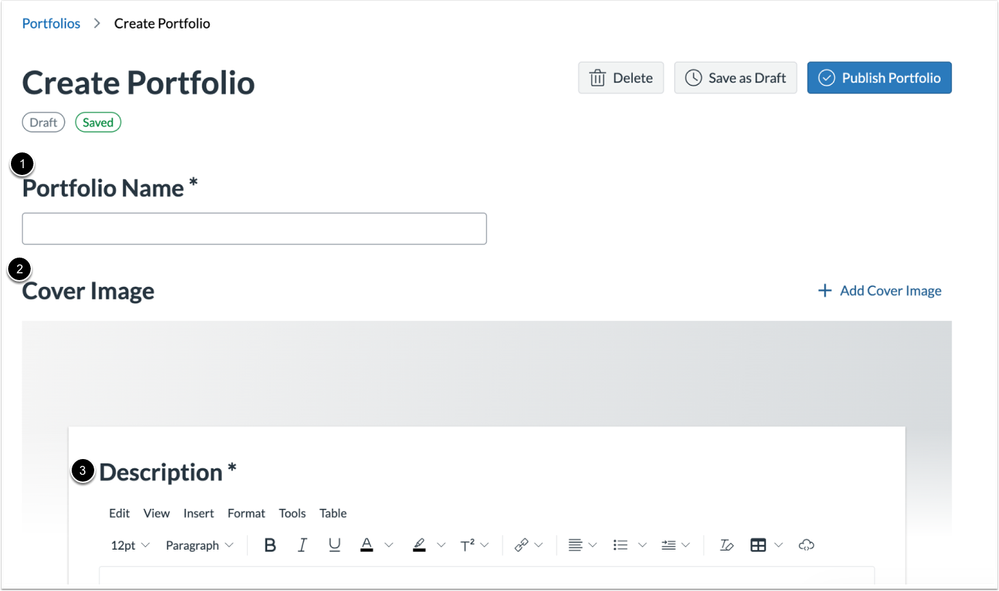
To create a Showcase Portfolio as a learner, click the Create portfolio button.
Learners can then add a Portfolio Name [1], Cover Image [2] and Description [3].
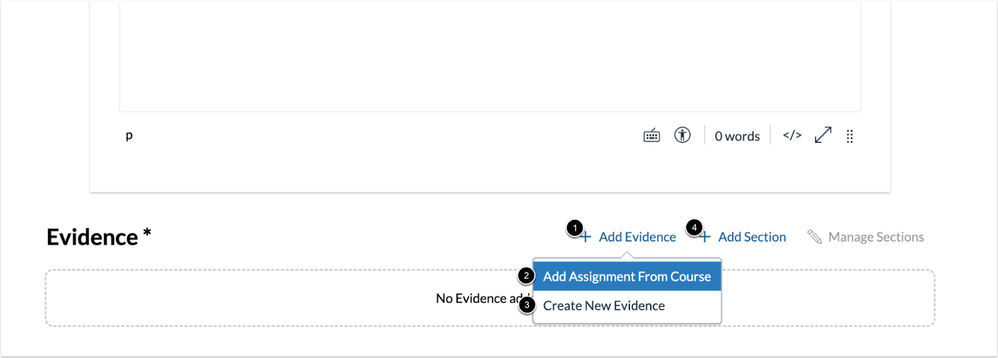
To include evidence in a portfolio, click the Add Evidence link [1], then choose to Add Assignment from Course [2] or Create New Evidence [3]. To organize content, click the Add Section link [4]
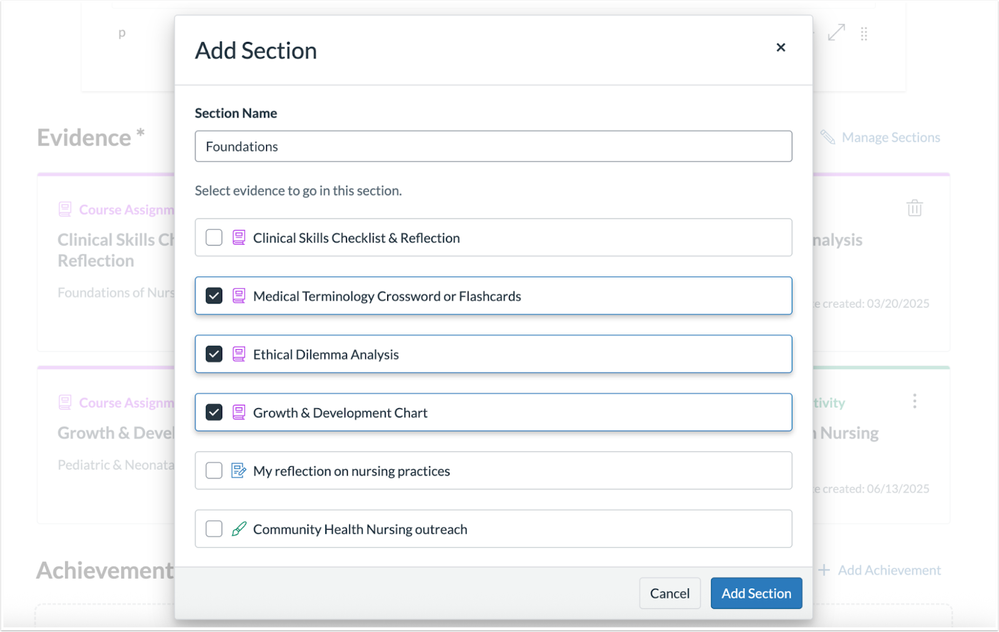
Learners can organize content by creating custom sections based on themes, timelines, or categories.
Once a portfolio is complete, learners can Delete [1], Export [2], Share [3], or Edit their work [4]. Portfolios can be exported in multiple formats, including PDF, HTML, or as a bulk file download. When sharing a portfolio, learners can either generate a unique public link or share directly to professional platforms like LinkedIn.

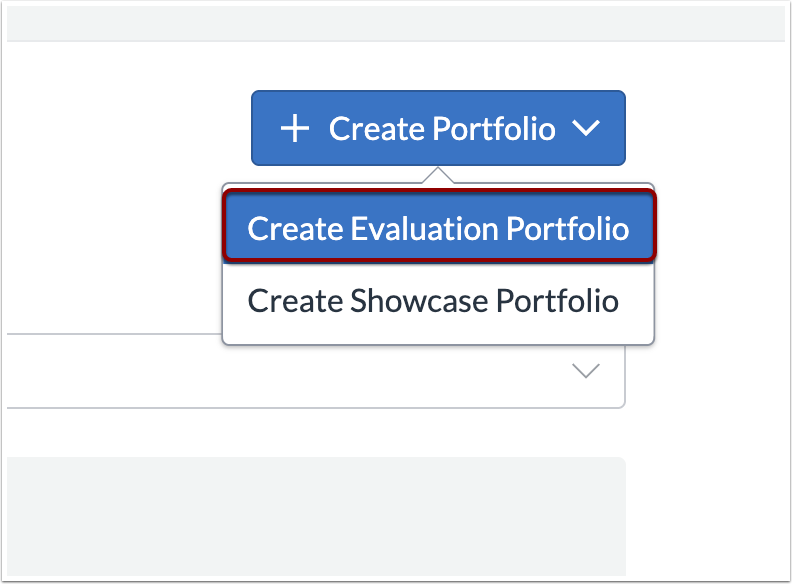
As an instructor or admin, to create a guided portfolio click the Create Evaluation Portfolio button.
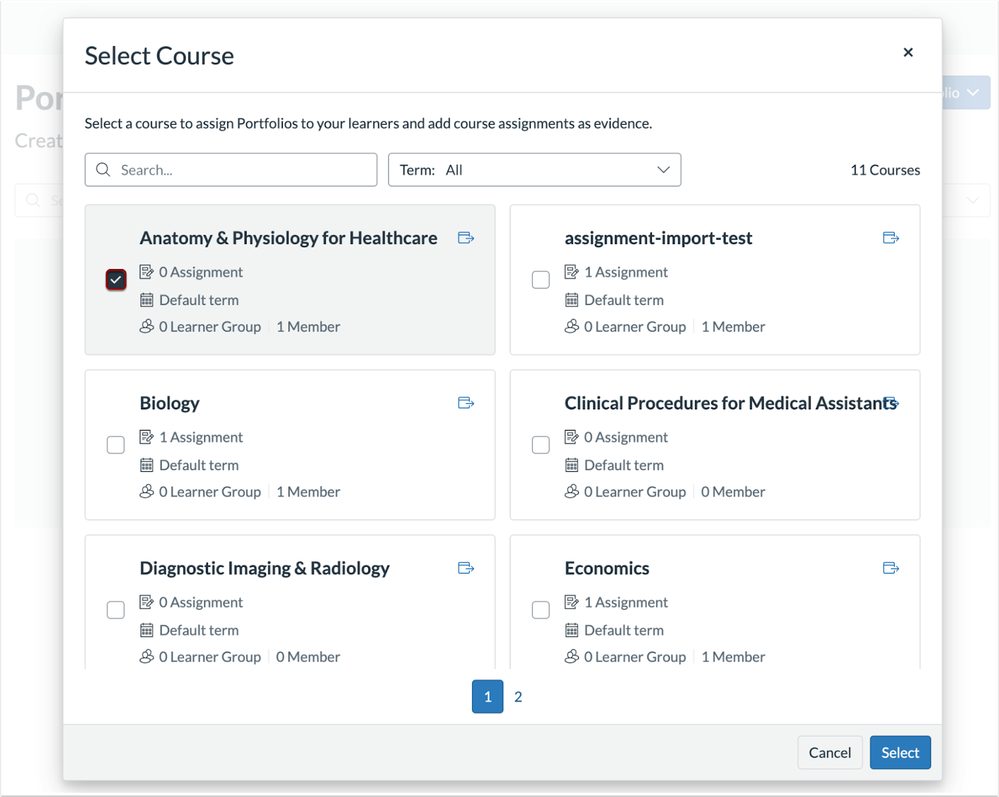
Instructors can connect the Evaluation Portfolio to one or more courses automatically enrolling learners to their own portfolio instance.
To create an Evaluation Portfolio, instructors can add a Portfolio Name [1], and optional Cover Image [2] and Portfolio Instructions [3].

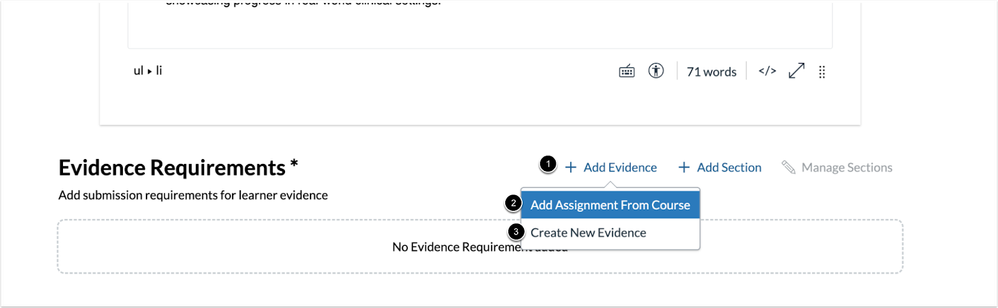
To add evidence requirements, click the Add Evidence link [1]. Then, choose to Add Assignment From Course [1] or Create New Evidence [3].
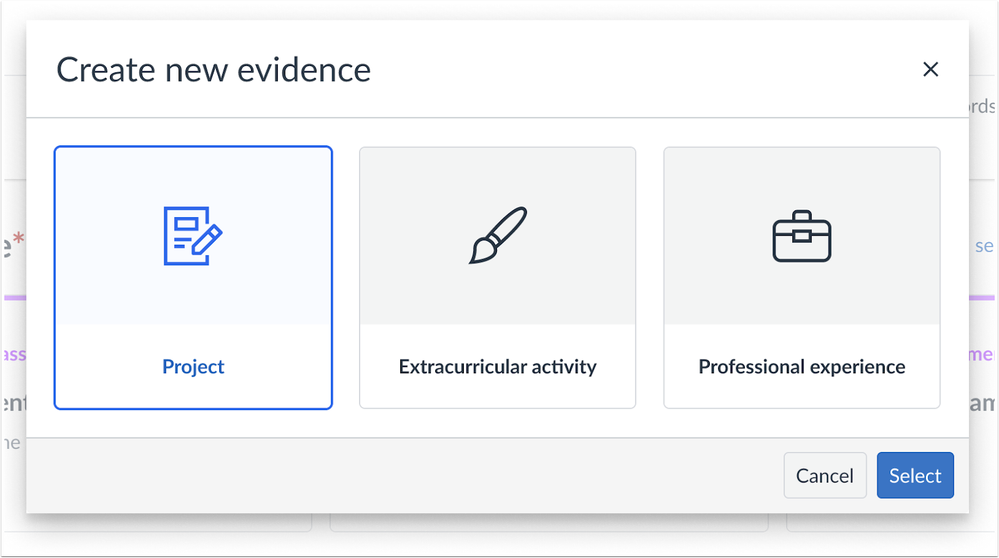
When adding new evidence, instructors can select from categories like Project, Extracurricular Activity, or Professional Experience.
Each custom portfolio requirement can include instructions and be linked to one or more skills, helping clarify the purpose of the evidence submitted.

Instructors can also organize their content by adding sections.
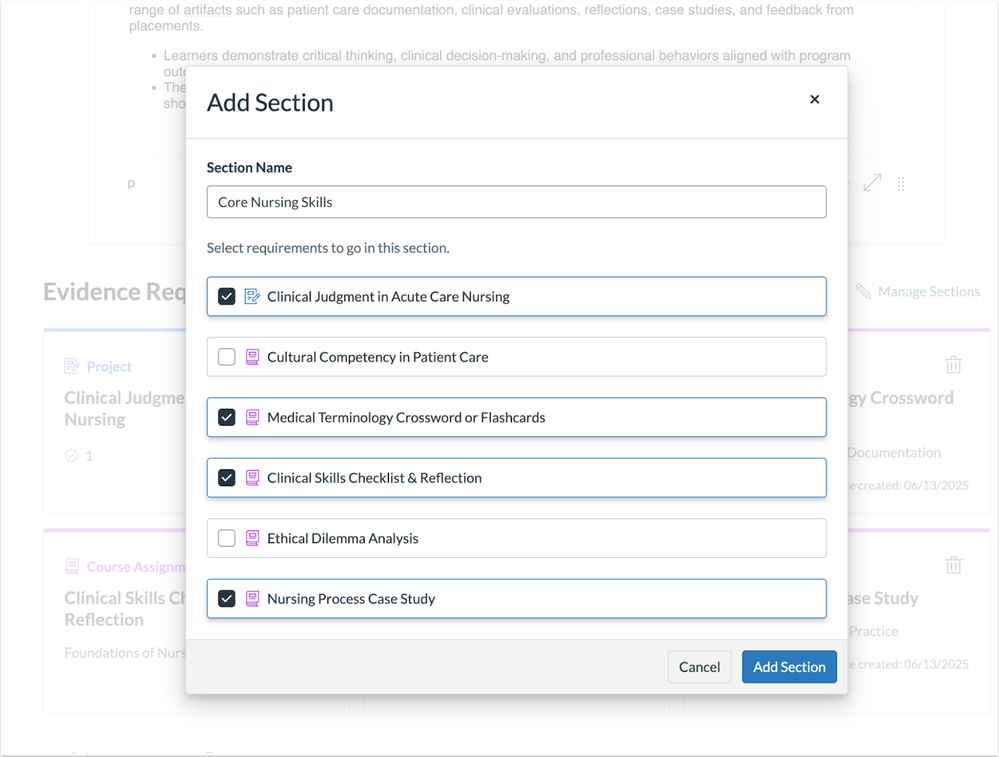
Learners can access Evaluation Portfolios assigned by their instructor directly within their own portfolio workspace.

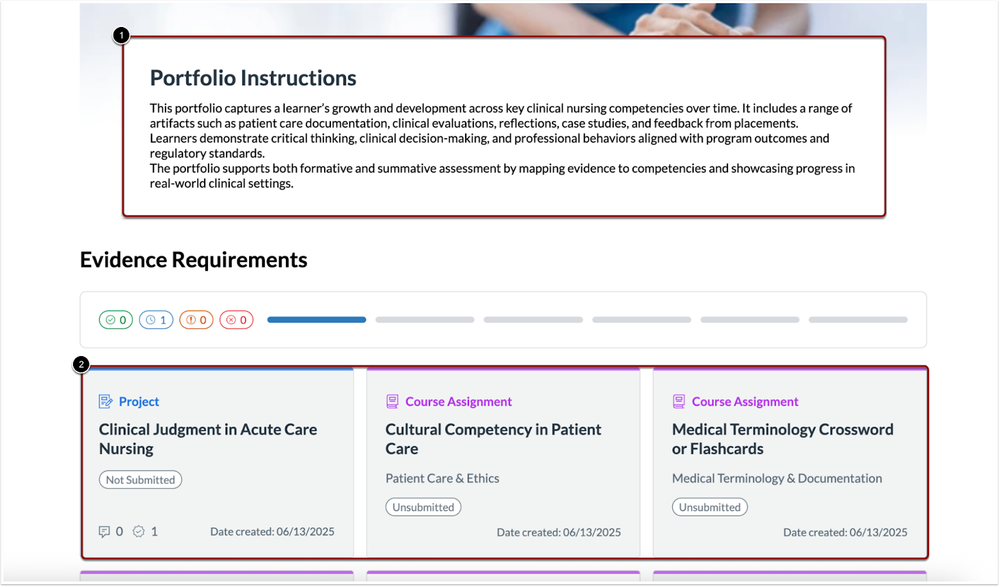
Learners can view the portfolio instructions [1] and evidence requirements [2], then begin submitting their work.
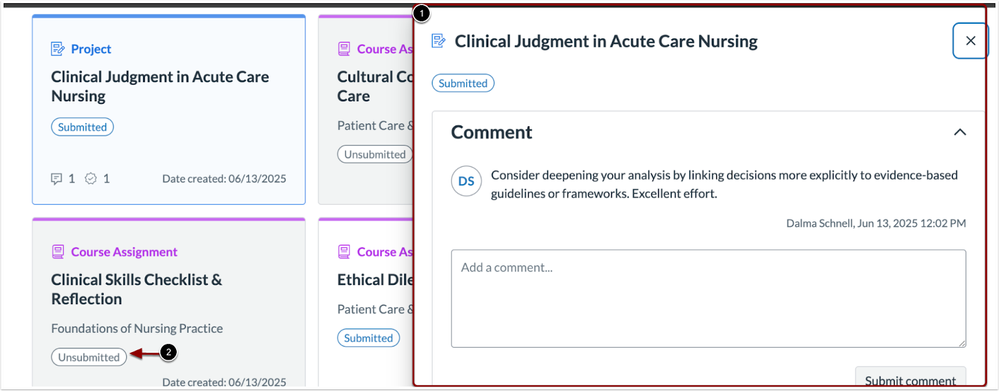
Learners can revise and resubmit portfolio entries based on instructor feedback [1]. Status indicators provide real-time updates, showing which items are submitted for review and which have been marked complete [2].
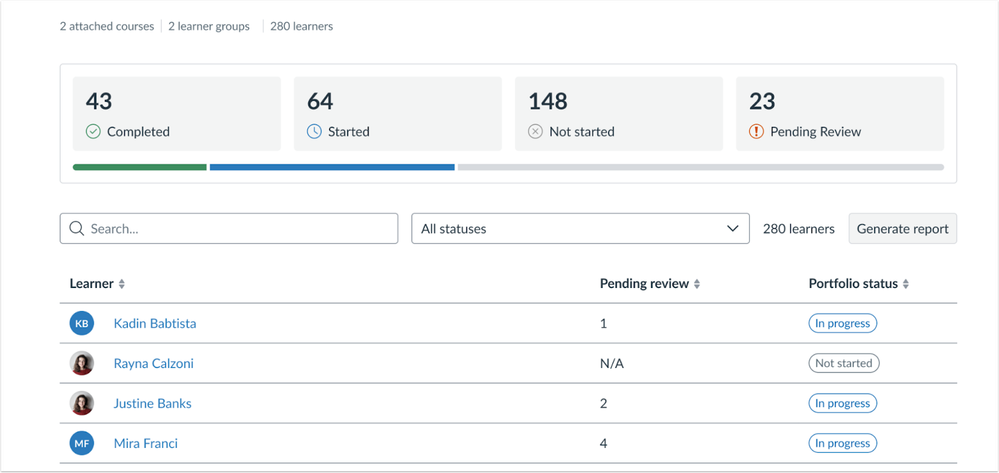
Instructors can track learner progress at both the individual and group levels.
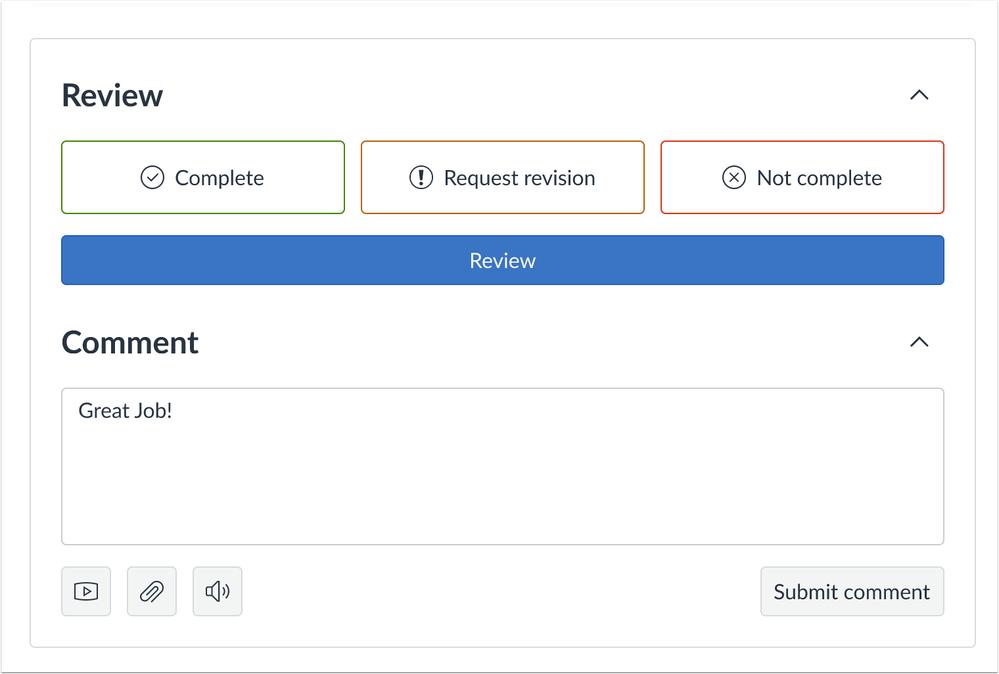
Instructors can review submitted evidence, give feedback directly within the portfolio, and mark entries complete when requirements are met.
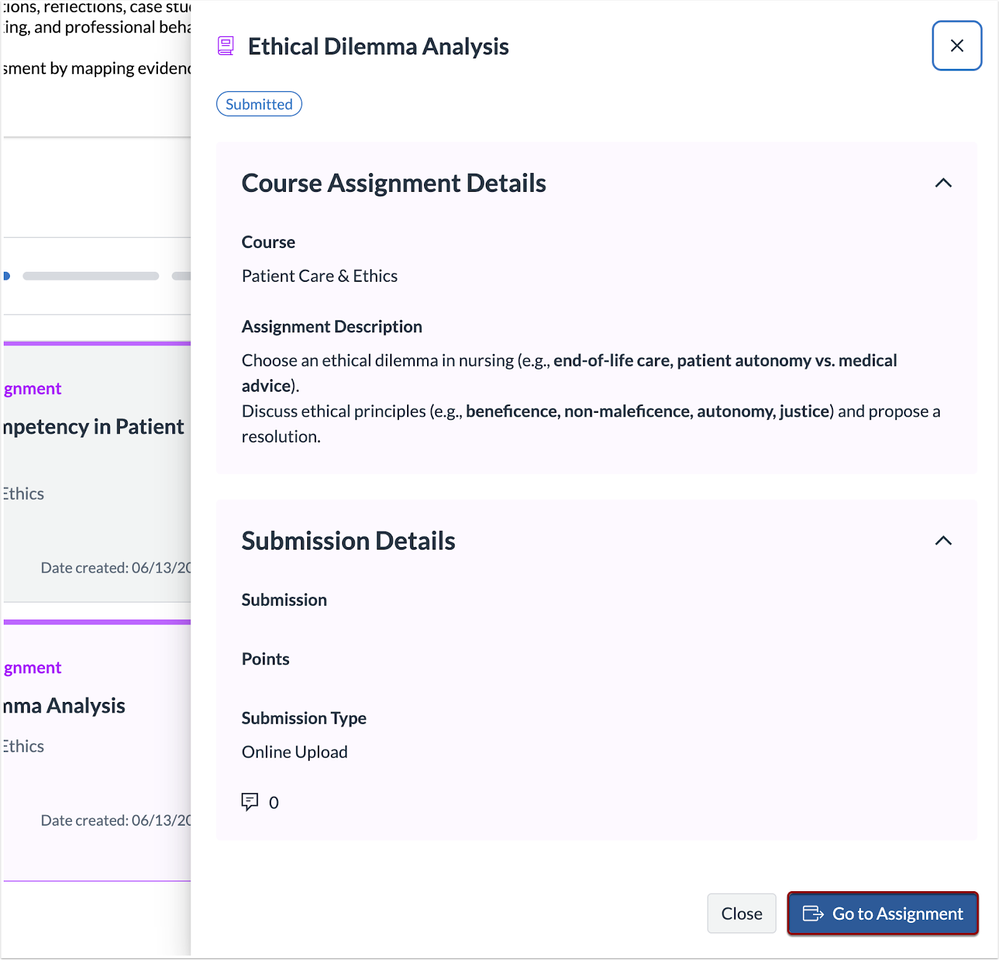
To view the Canvas Assignment, click the Go to Assignment button.
Note: Canvas assignments linked within the portfolio are still graded using SpeedGrader.
Skills linked to submitted evidence automatically display in the learner’s portfolio, providing a quick view of progress. Each skill displays the number of associated evidence items and uses color coding to indicate status.
